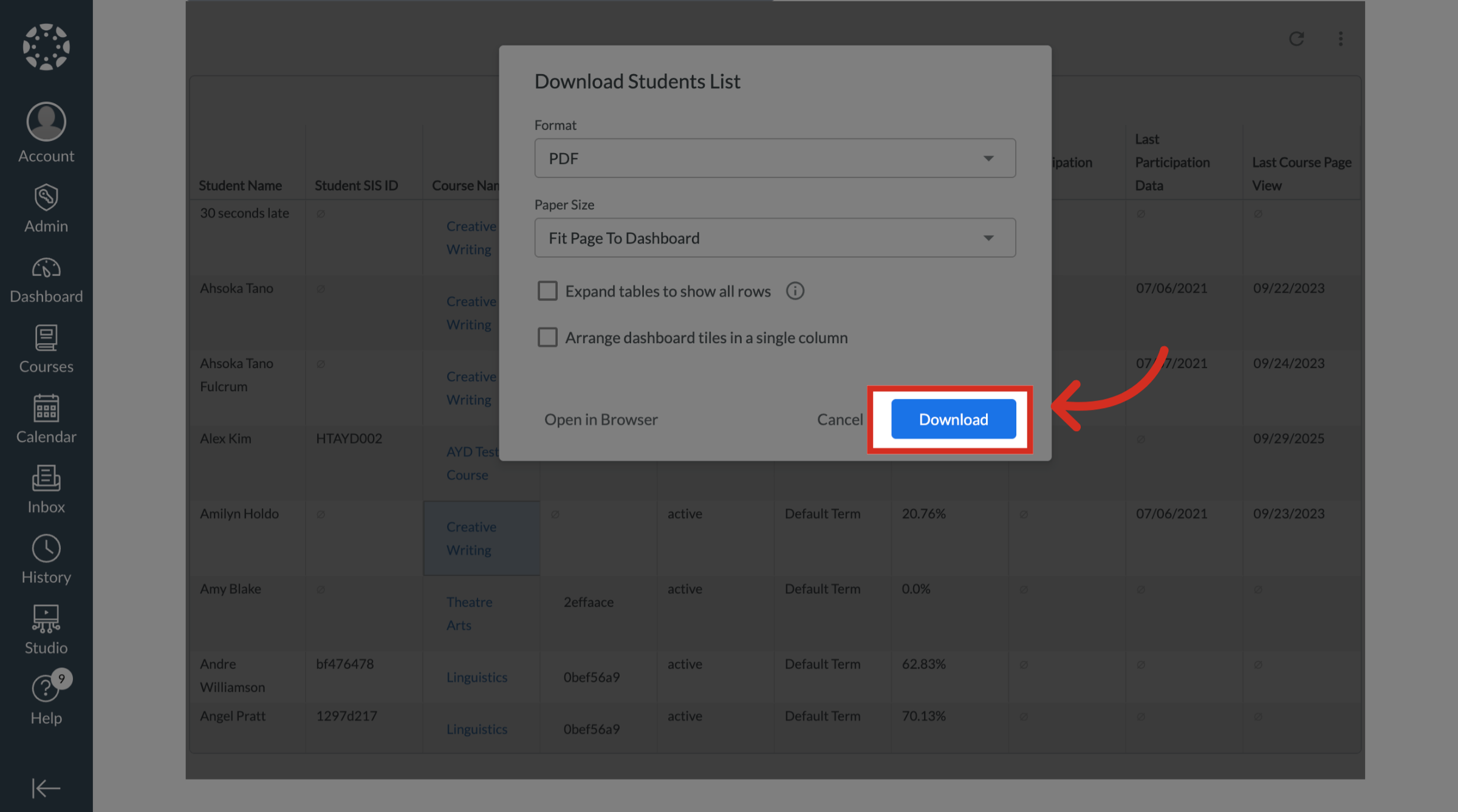
How do I download the results in Title IV Financial Aid Report?
In the Title IV Financial Aid Report, you can export and download the report from your selected criteria. This provides options to download both the high-level visual dashboard report and the detailed underlying data, such as the list of identified students. Before exporting, you can adjust several formatting and layout options to customize the output file for your needs.
How do I download the results in Title IV Financial Aid Report?
1. Select Criteria
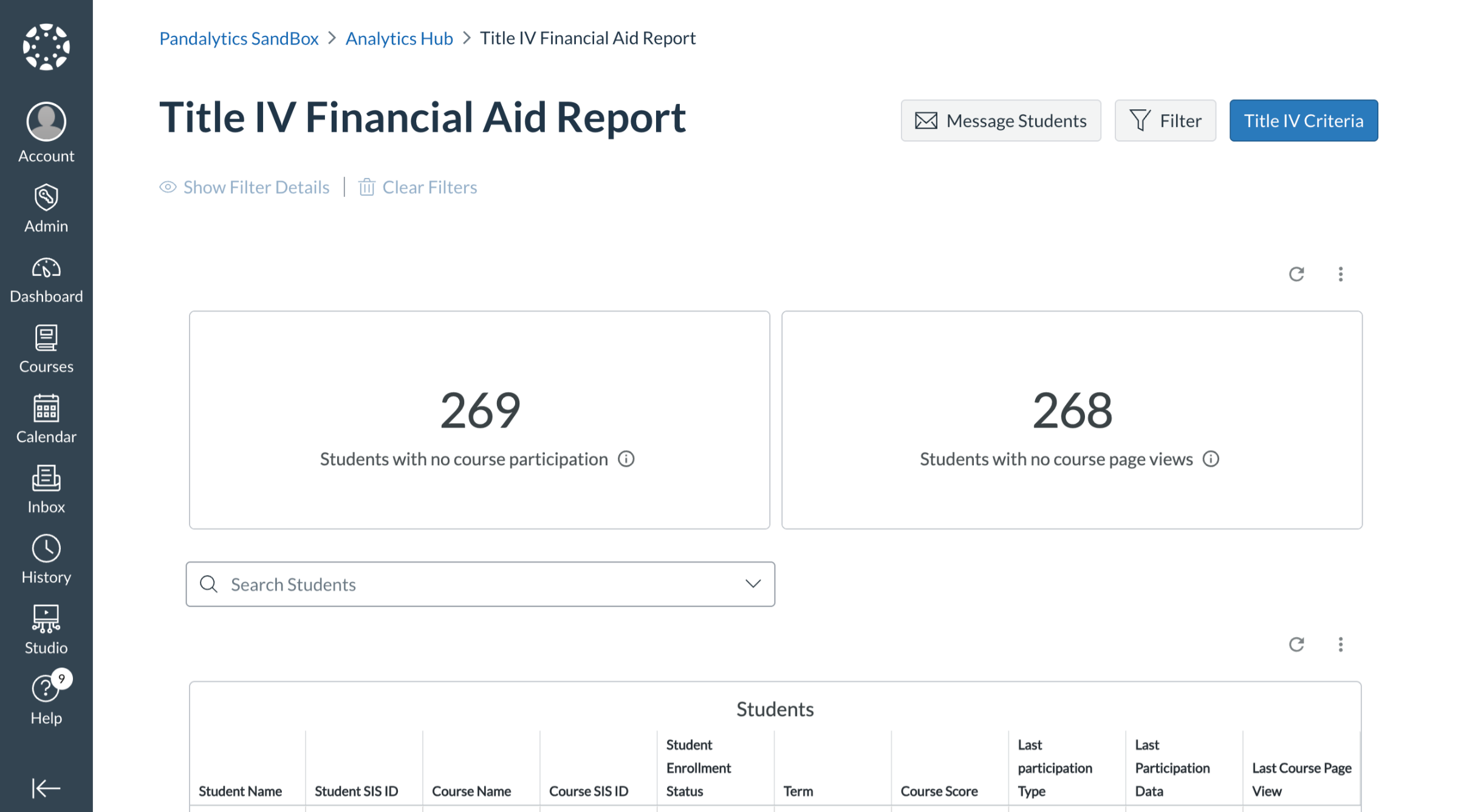
2. Open Dashboard Actions
To download the Financial Aid KPI dashboard, click the Dashboard Actions icon.
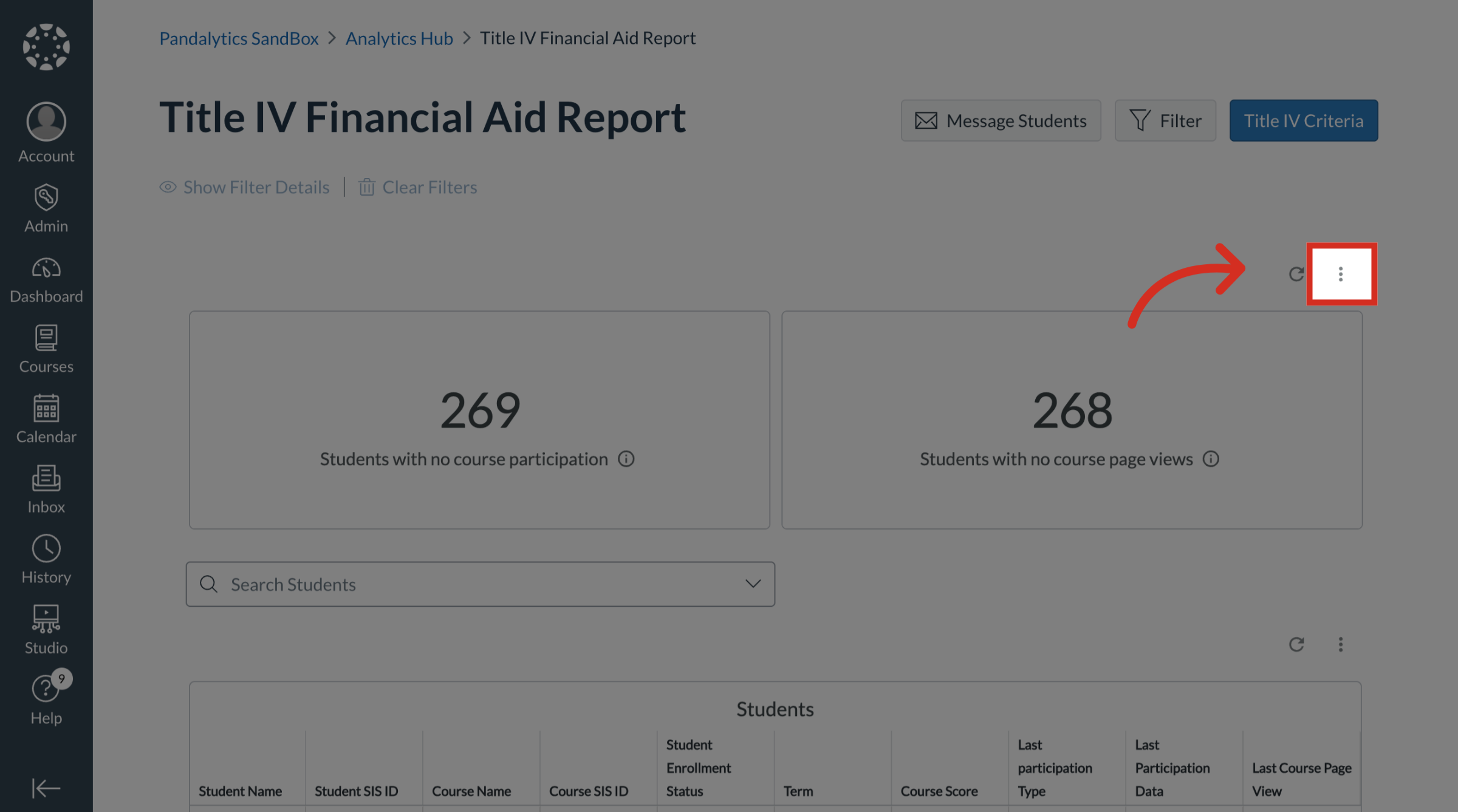
3. Open Download Settings
Then click the Download link.
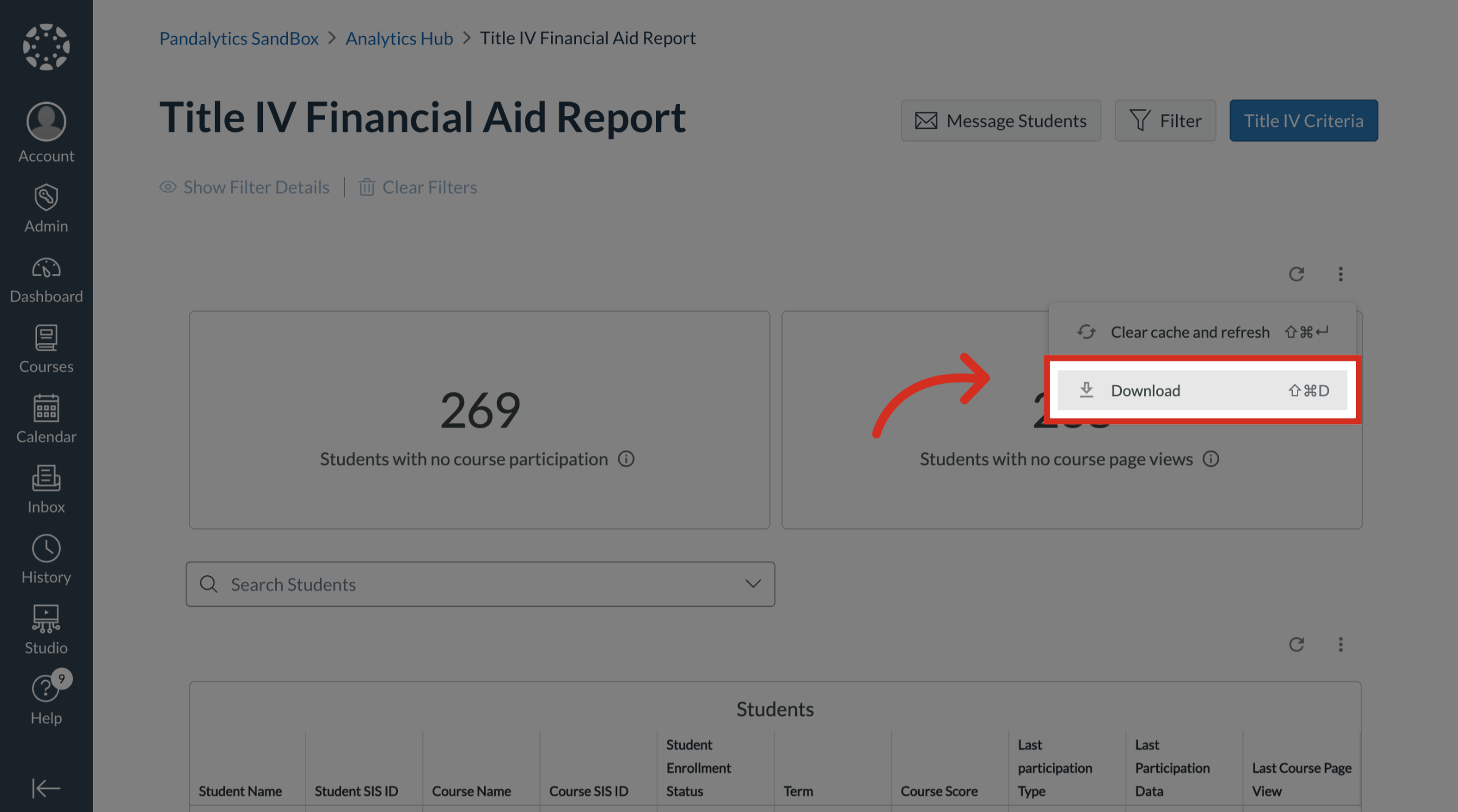
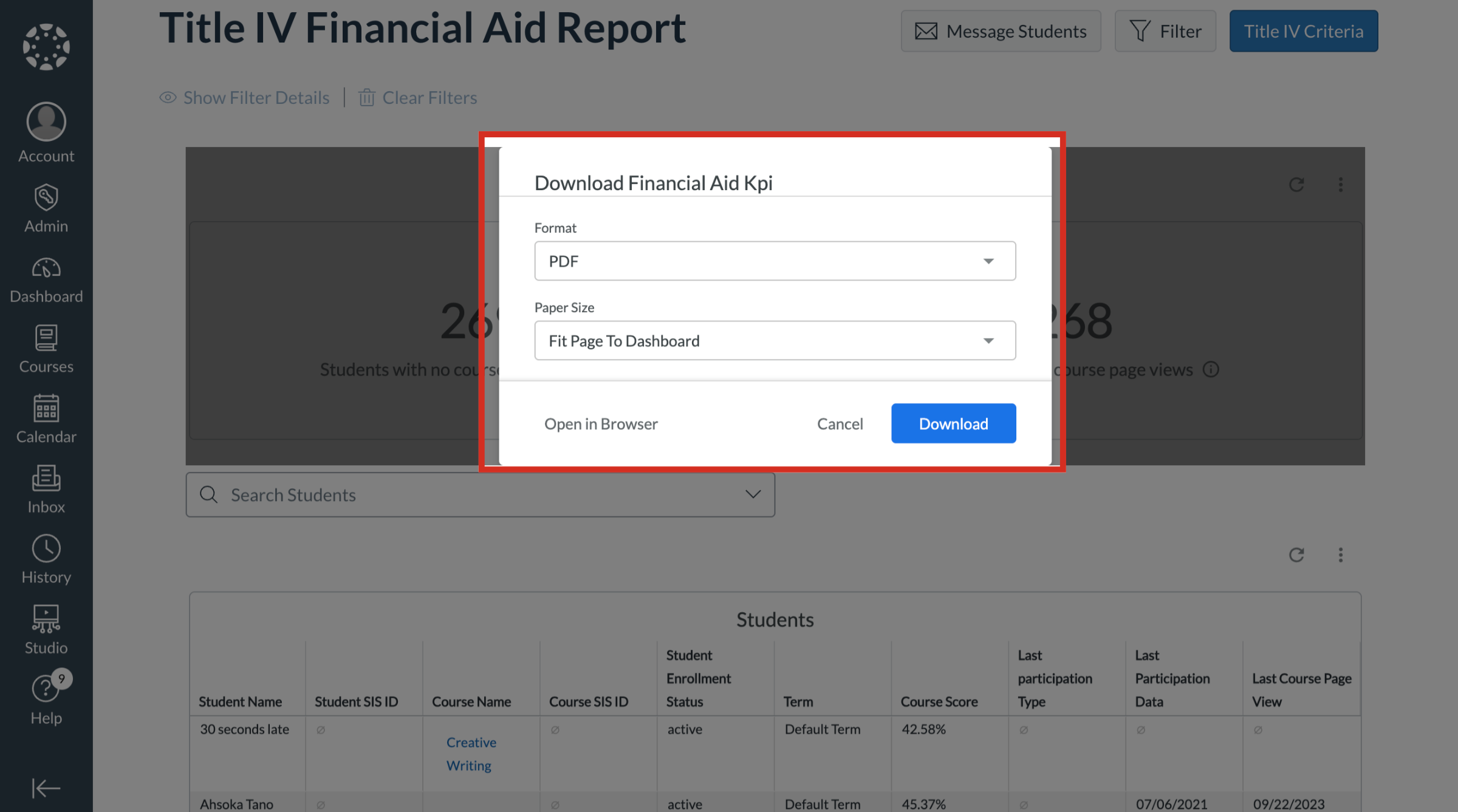
4. Edit Download Settings
In the download settings, select the desired Format and Paper Size. Then select whether you want to Expand tables to show all rows or Arrange dashboard tiles in a single column.
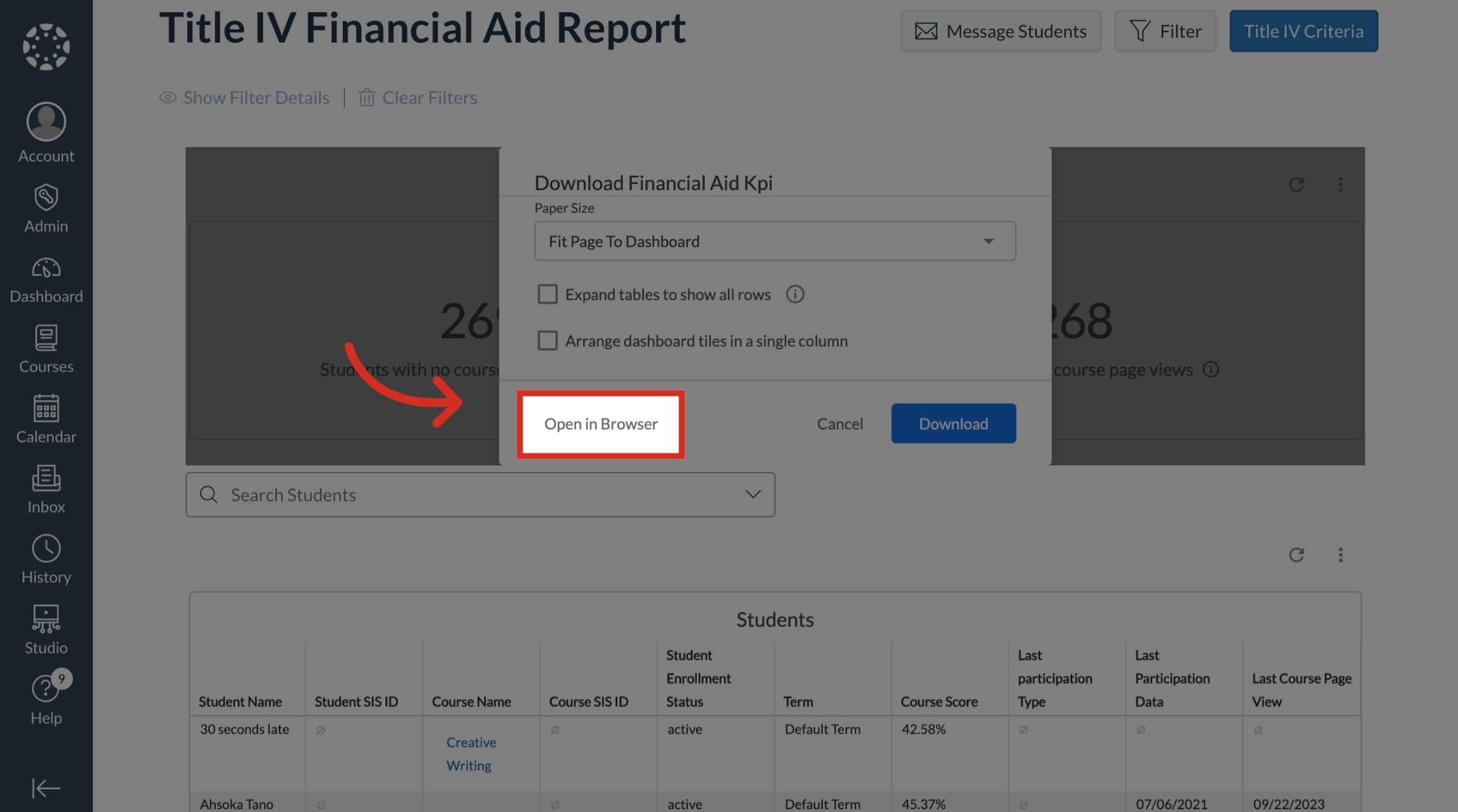
5. Open in Browser
To view and download the data in the browser, click the Open in Browser link.
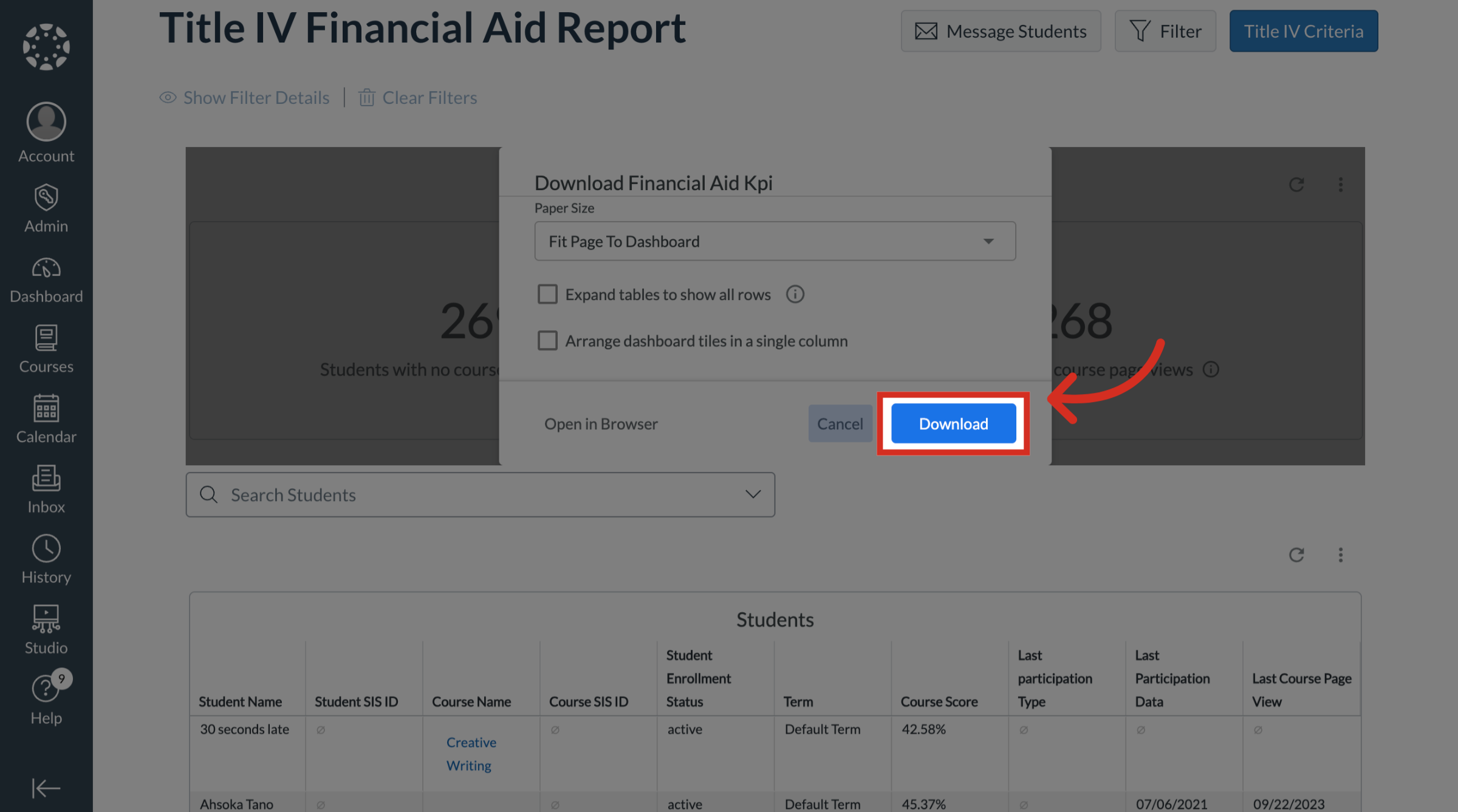
6. Download Financial Aid KPI
To view and download the data to your device, click the Download button.
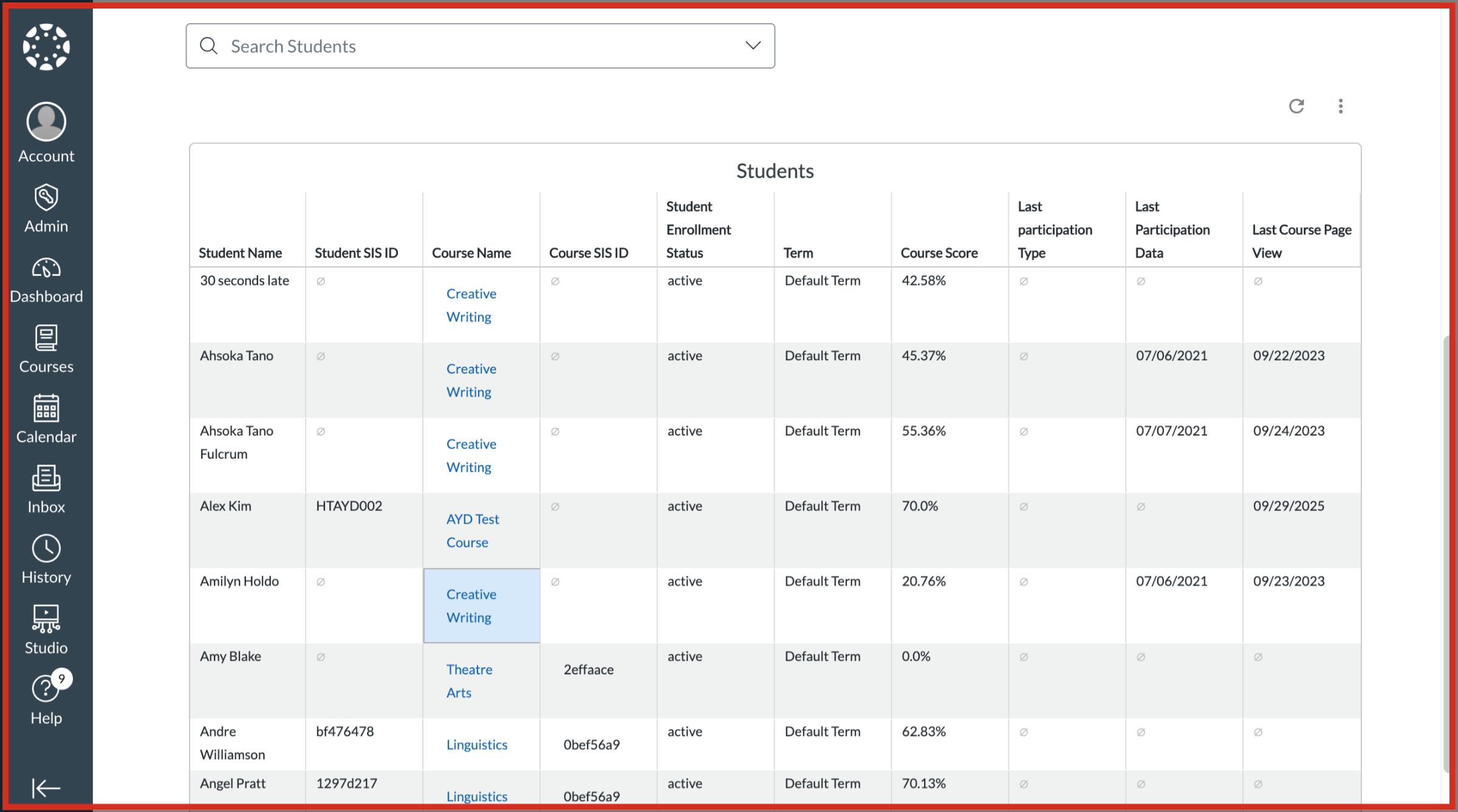
7. Students List
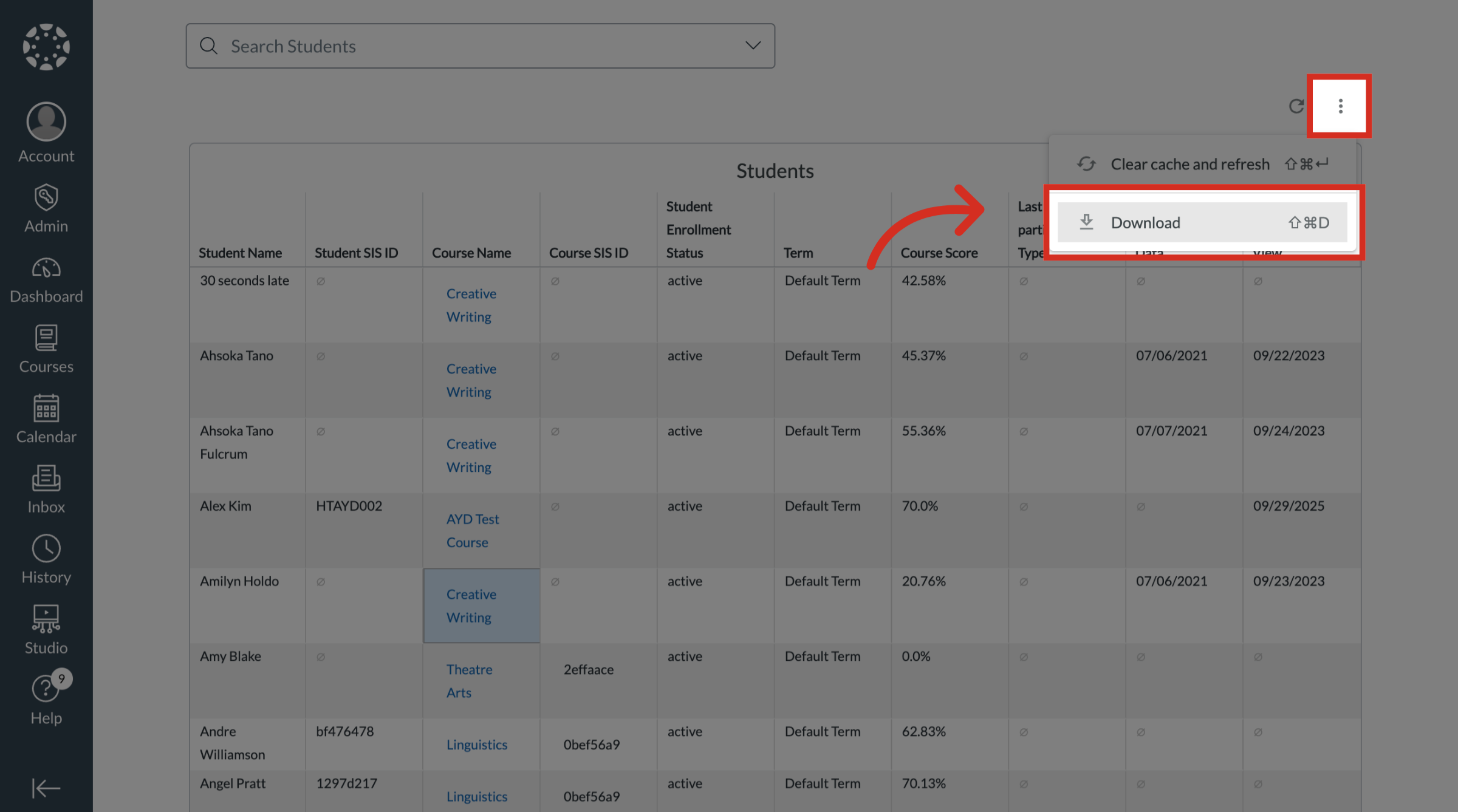
To download the Students list, scroll and navigate to the Students table.
8. Open Download Settings
Click the Dashboard Actions icon. Then click the Download link.
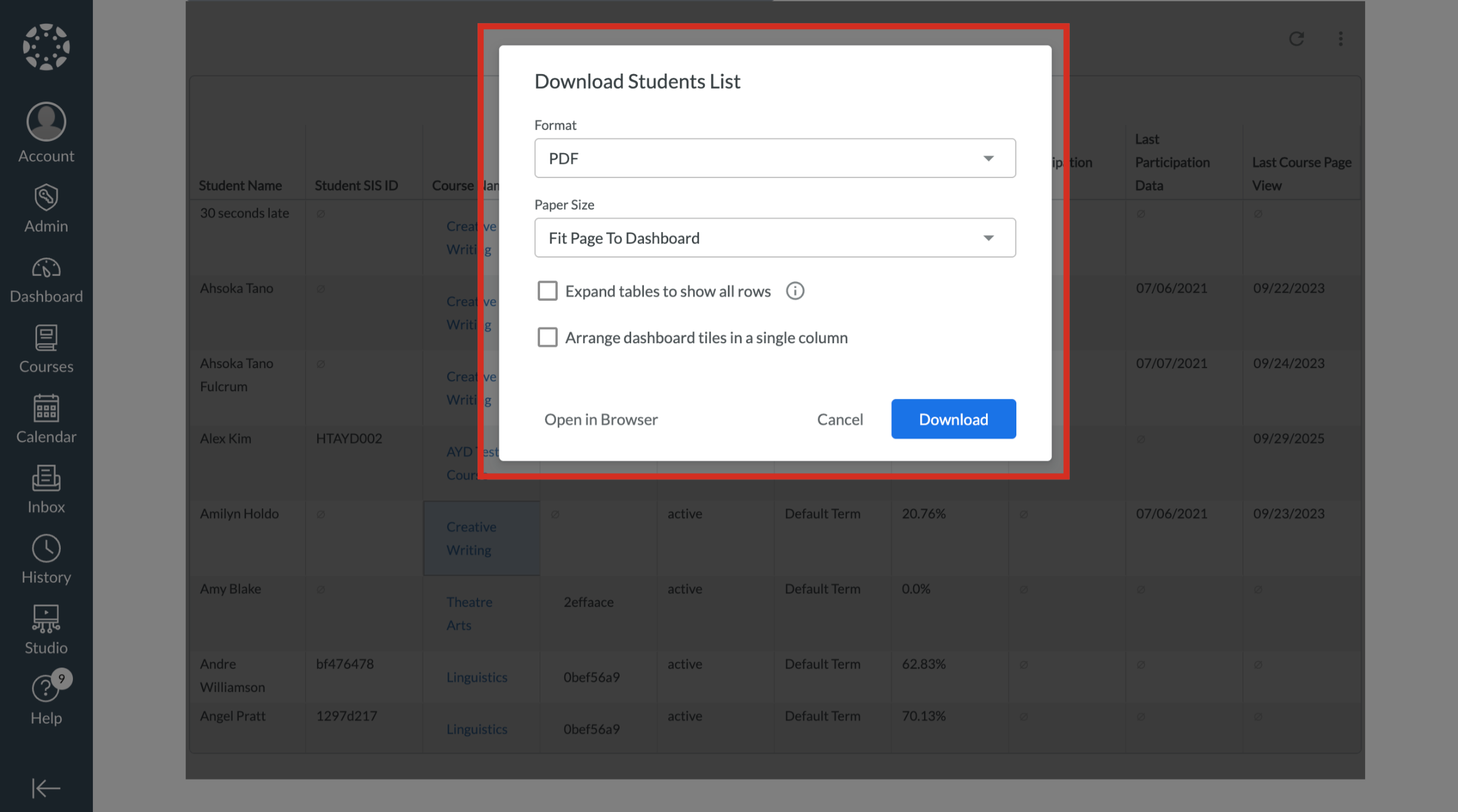
9. Edit Download Settings
In the download settings, select the desired Format and Paper Size. Then select whether you want to Expand tables to show all rows or Arrange dashboard tiles in a single column.
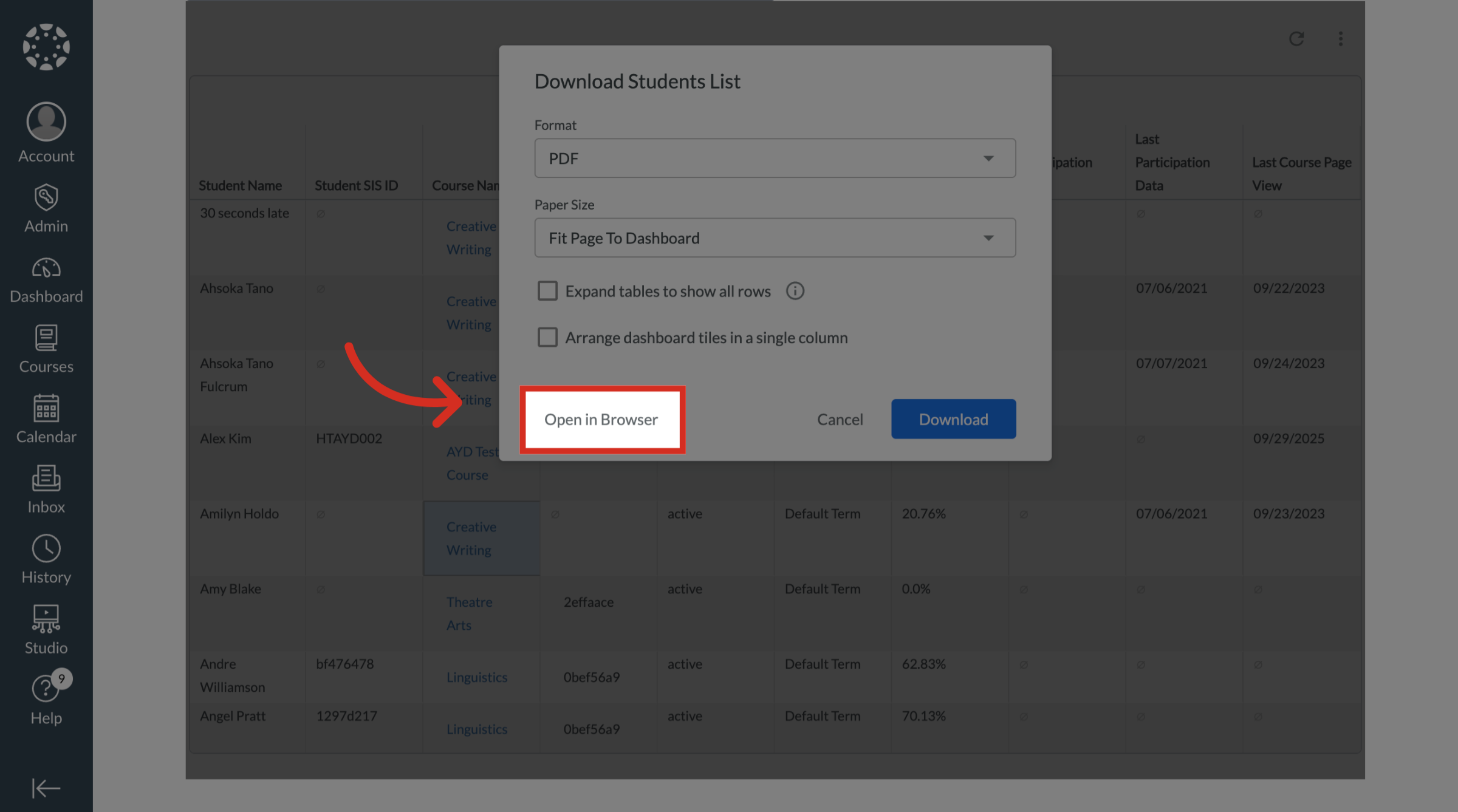
10. Open in Browser
To view and download the data in the browser, click the Open in Browser button.
11. Download Students List
To view and download the data to your device, click the Download button.