How do I filter the data results in Title IV Financial Aid Report?
In the Title IV Financial Aid Report, you can apply a wide range of filters to refine the data on the dashboard. These options allow you to narrow results by various academic parameters, such as term, instructor, or course attributes like status and format. A key feature is the ability to customize the report by setting your own thresholds for what constitutes meaningful engagement, defining activity levels for both the course as a whole and for individual students within it.
How do I filter the data results in Title IV Financial Aid Report?
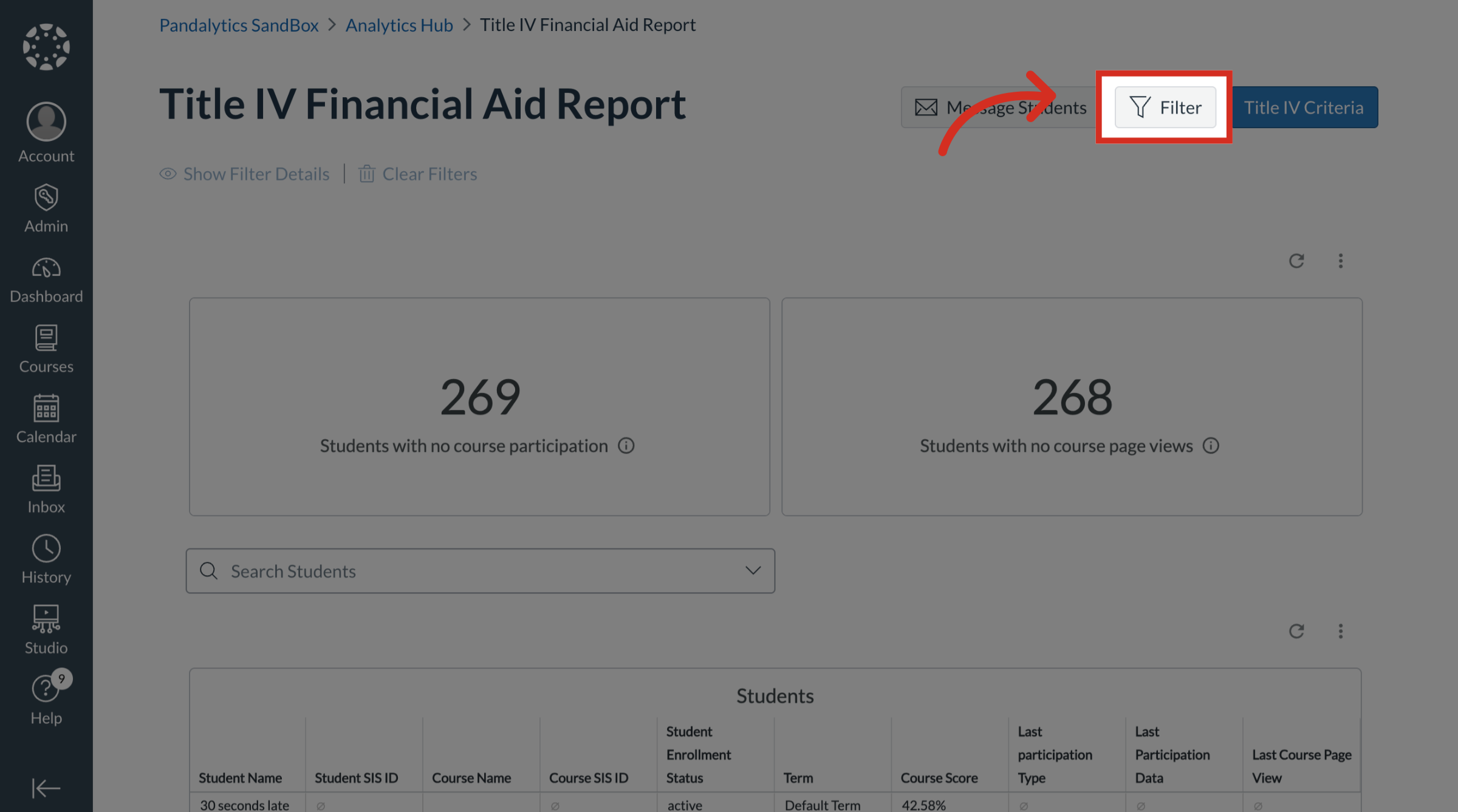
1. Open Filter Options
To access the Title IV Financial Aid Report filtering options where you can specify conditions for the report data, click the Filter button.
2. Courses with No Enrollments
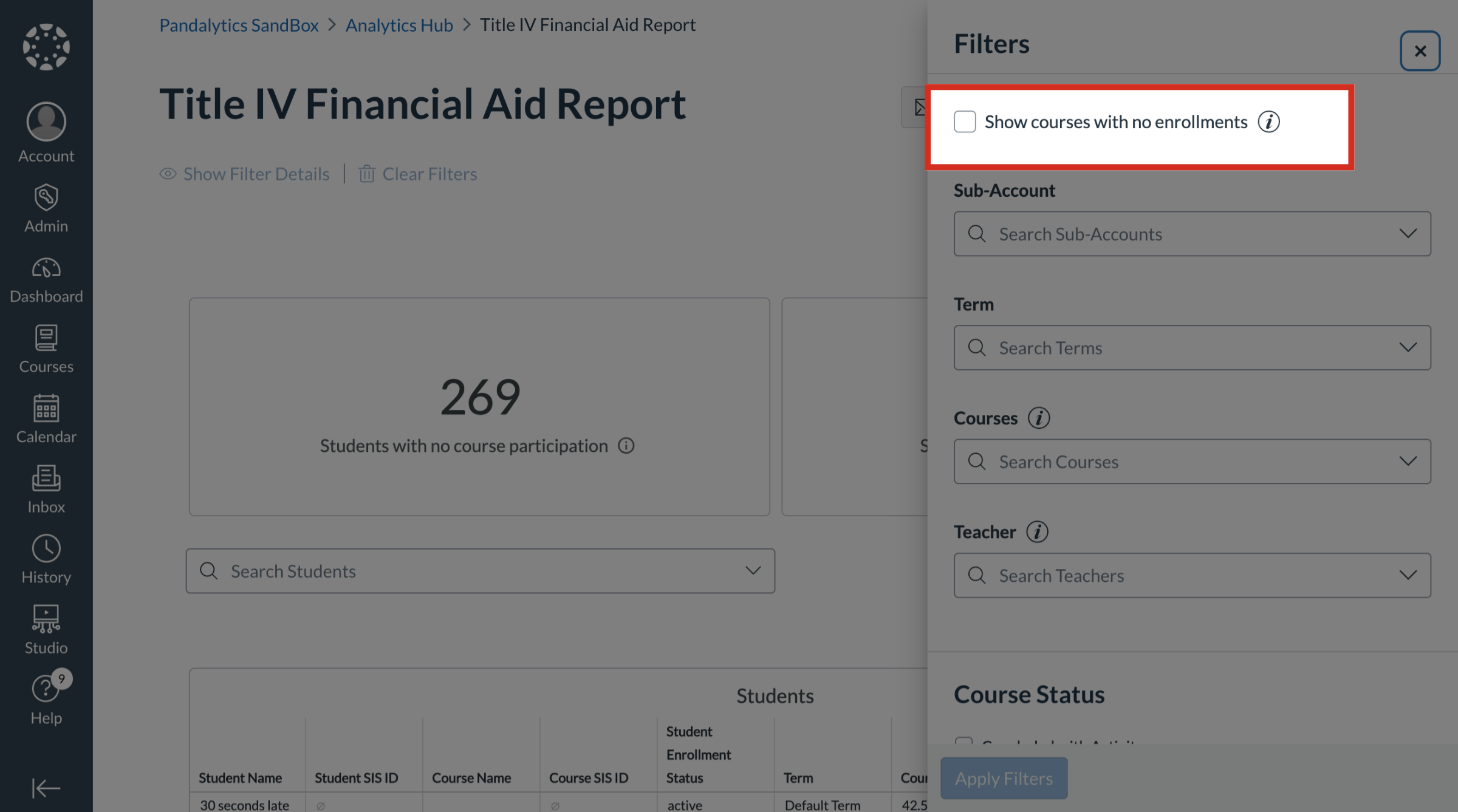
By default, the courses with no enrollments are filtered out.
To include them in the filter results, click the Show Courses with No Enrollments checkbox.
3. View Filter Options
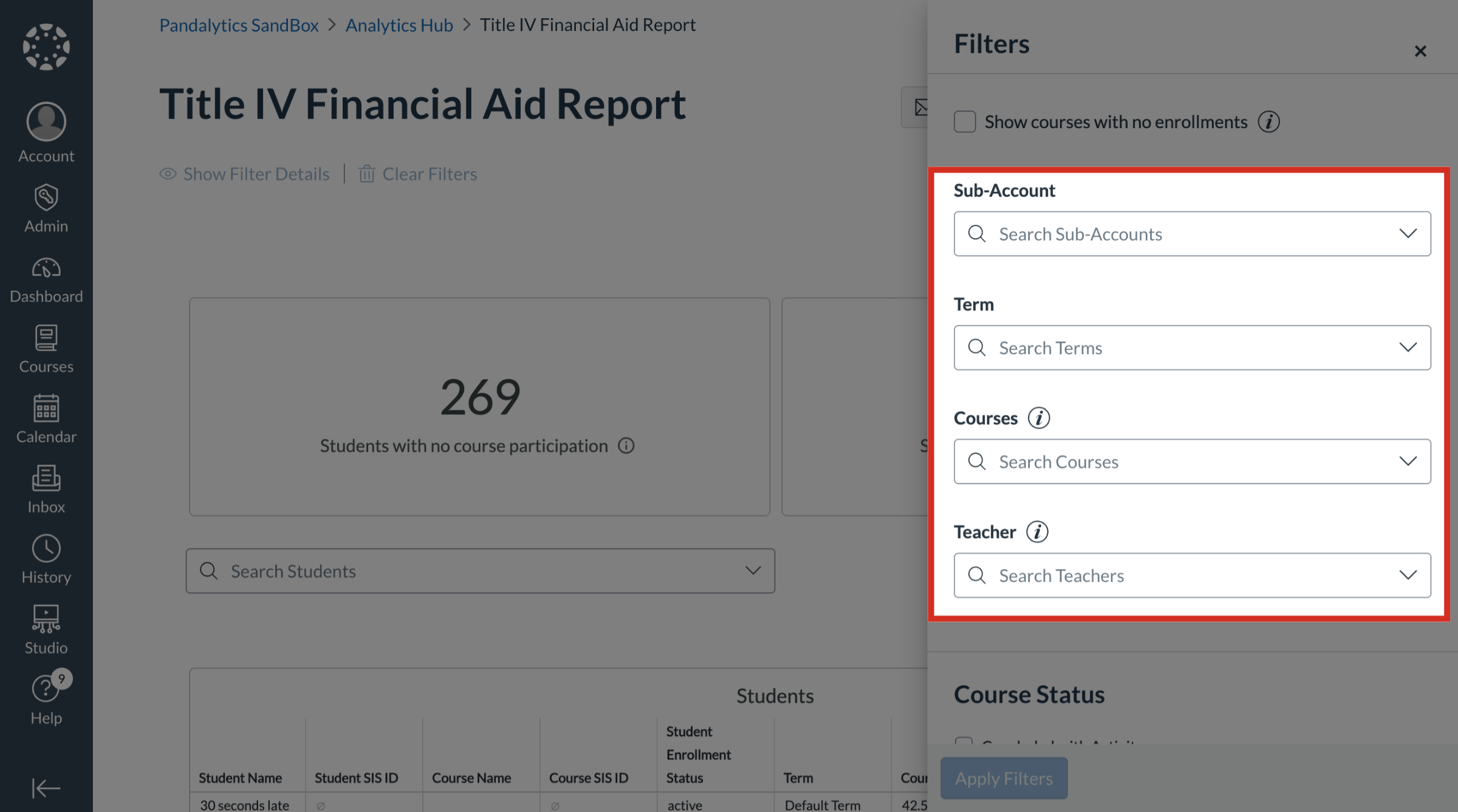
You can filter by Sub-Account, Term, Courses, or Teacher.
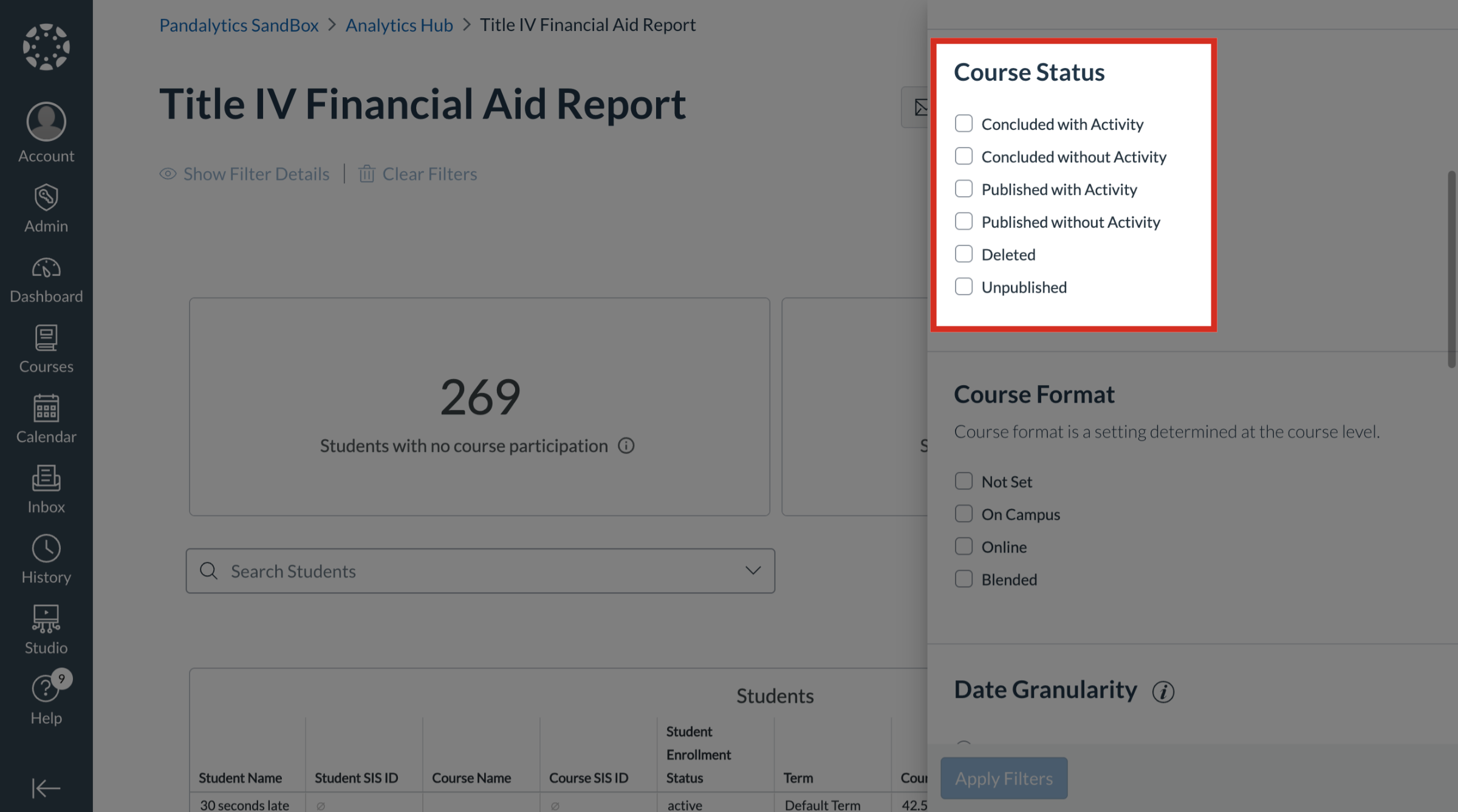
4. Course Status
You can filter Course Status by the following:
Concluded with Activity
Concluded without Activity
Published with Activity
Published without Activity
Deleted
Unpublished
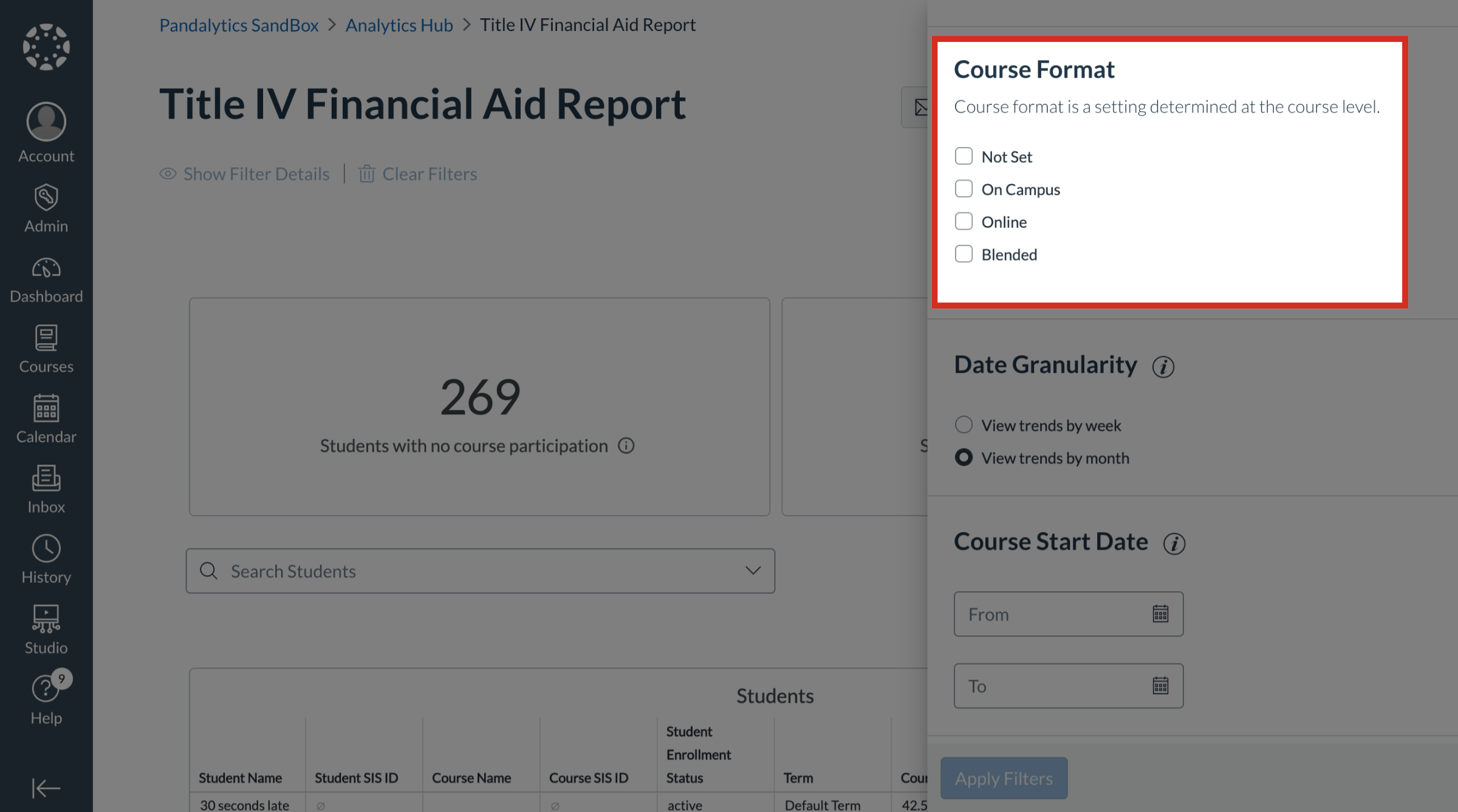
5. Course Format
You can filter Course Format by the following:
Not Set
On Campus
Online
Blended
6. Date Granularity
You can filter Date Granularity by View trends by week or View trends by month.

7. Course Start Date
To filter by course start date, select the From and To date ranges.

8. Course Activity Criteria
To define a Course with Activity, select a value for each of the following Course Activity Criteria categories:
Enrolled students with at least one page view
Enrolled Instructors
Course participations
Course pageviews

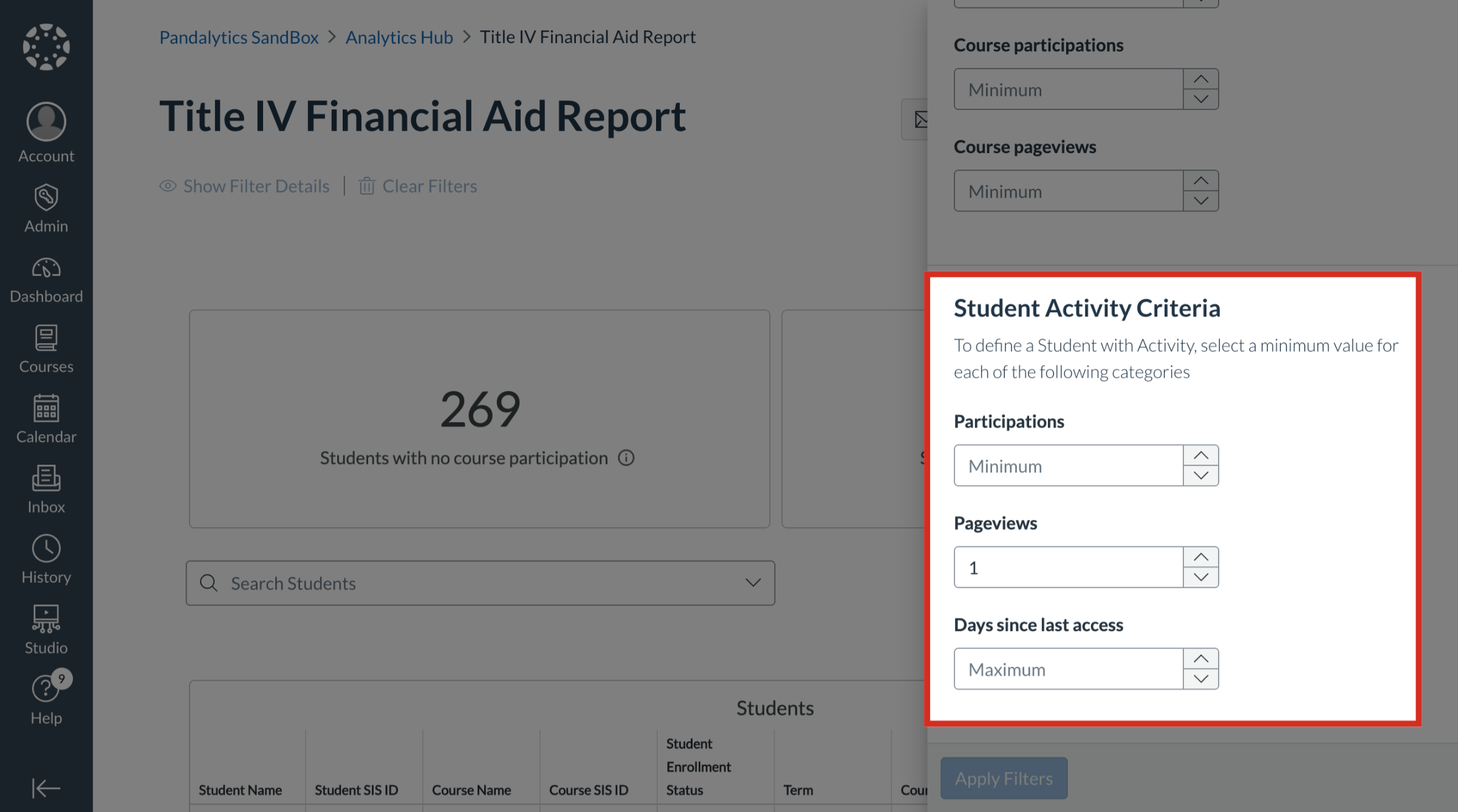
9. Student Activity Criteria
To define a Student with Activity, select a value for each of the following Student Activity Criteria categories:
Participation
Pageviews
Days since last access
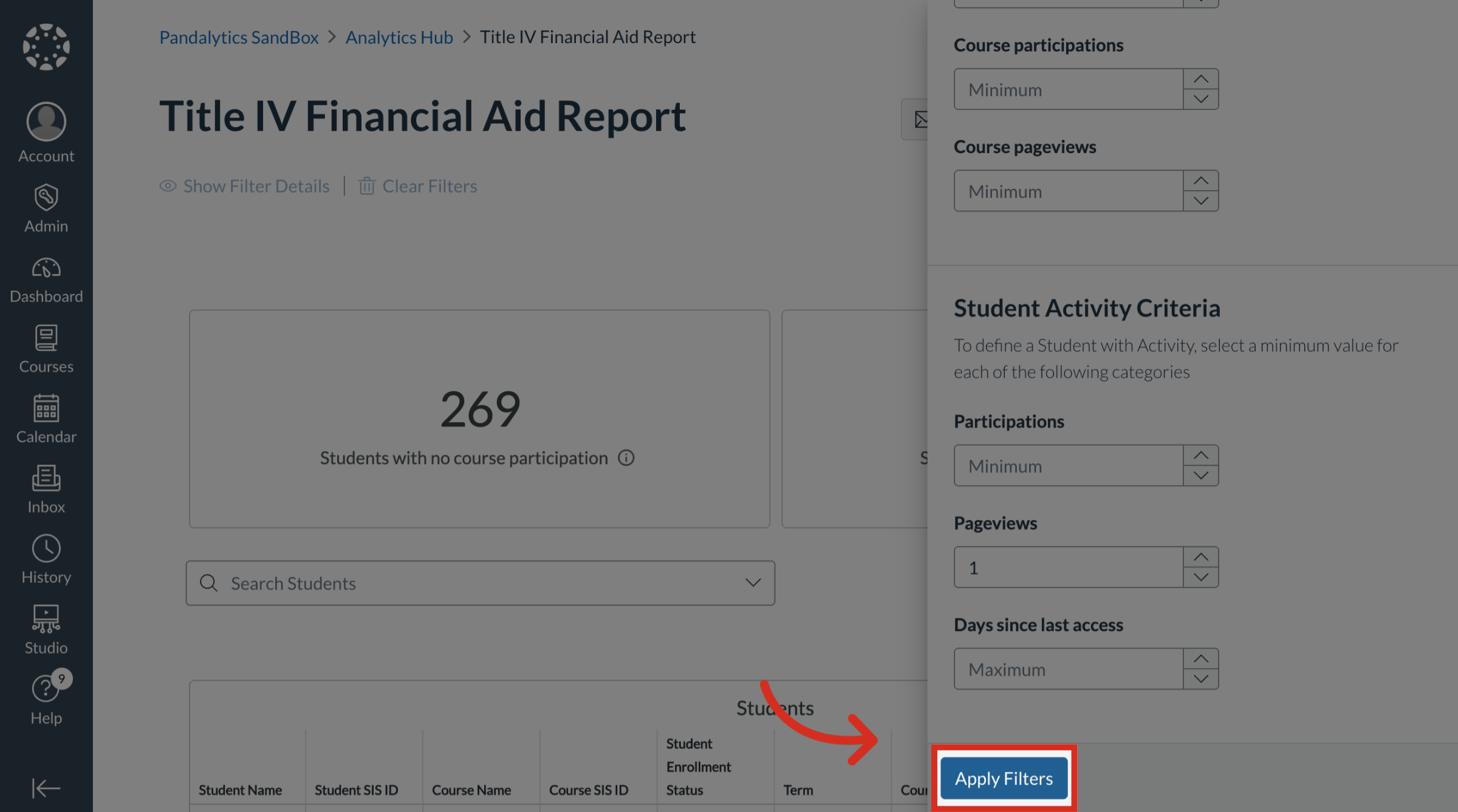
10. Apply Filters
Click the Apply Filters button.
11. Show or Clear Filters
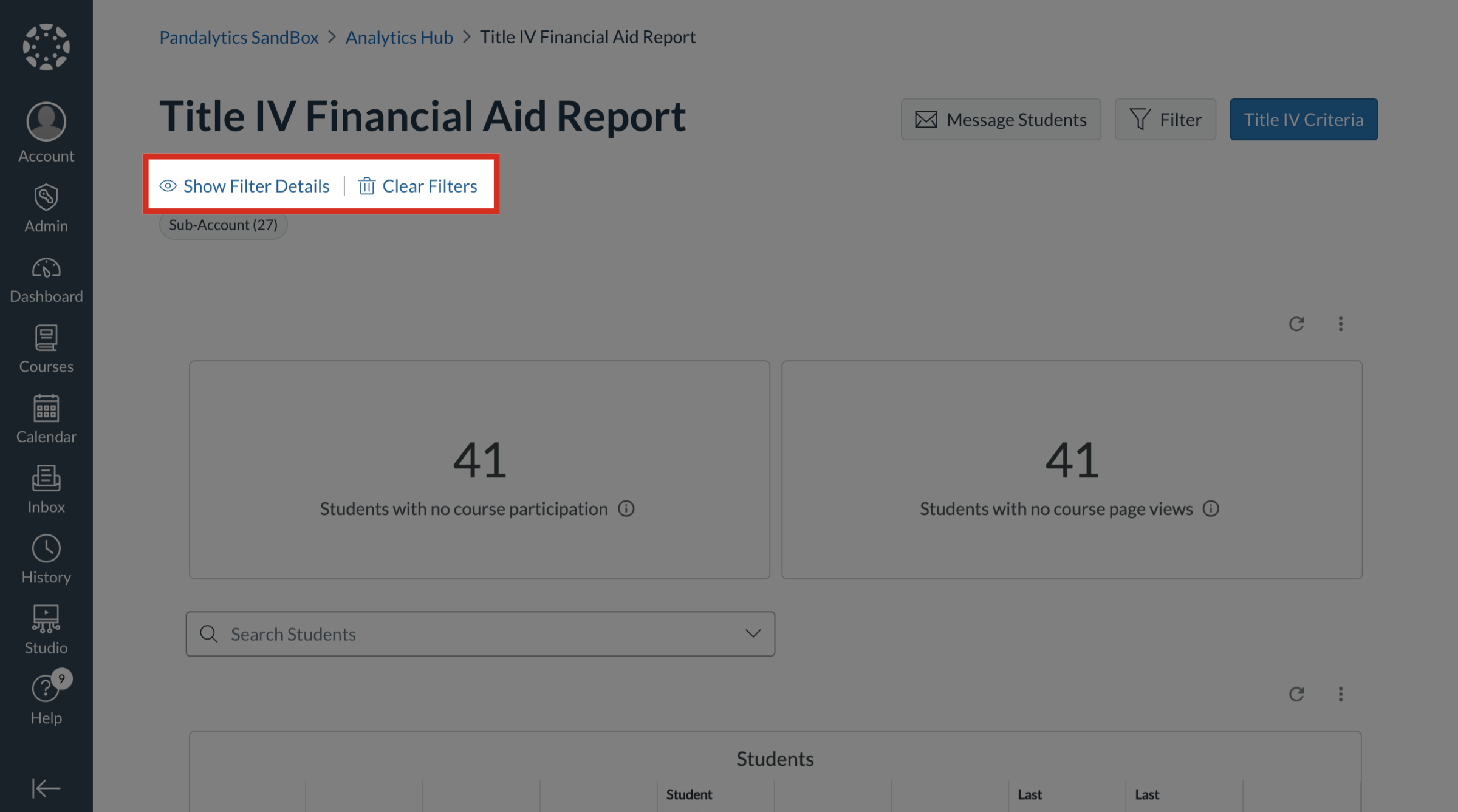
To display filters, click the Show Filter Details link.
To clear filters, click the Clear Filters link.