How do I define the Context Library in Ask Your Data?
The Context Library allows you to customize Ask Your Data by establing global rules and providing necessary background information. You can access your library to configure General Instructions, which standardize response formatting and terminology, and manage Institutional Source Documents, such as policies and handbooks. With the Context Library you can define your organization's specific context while ensuring all uploaded data remains private and confidential.
How do I define the Context Library in Ask Your Data?
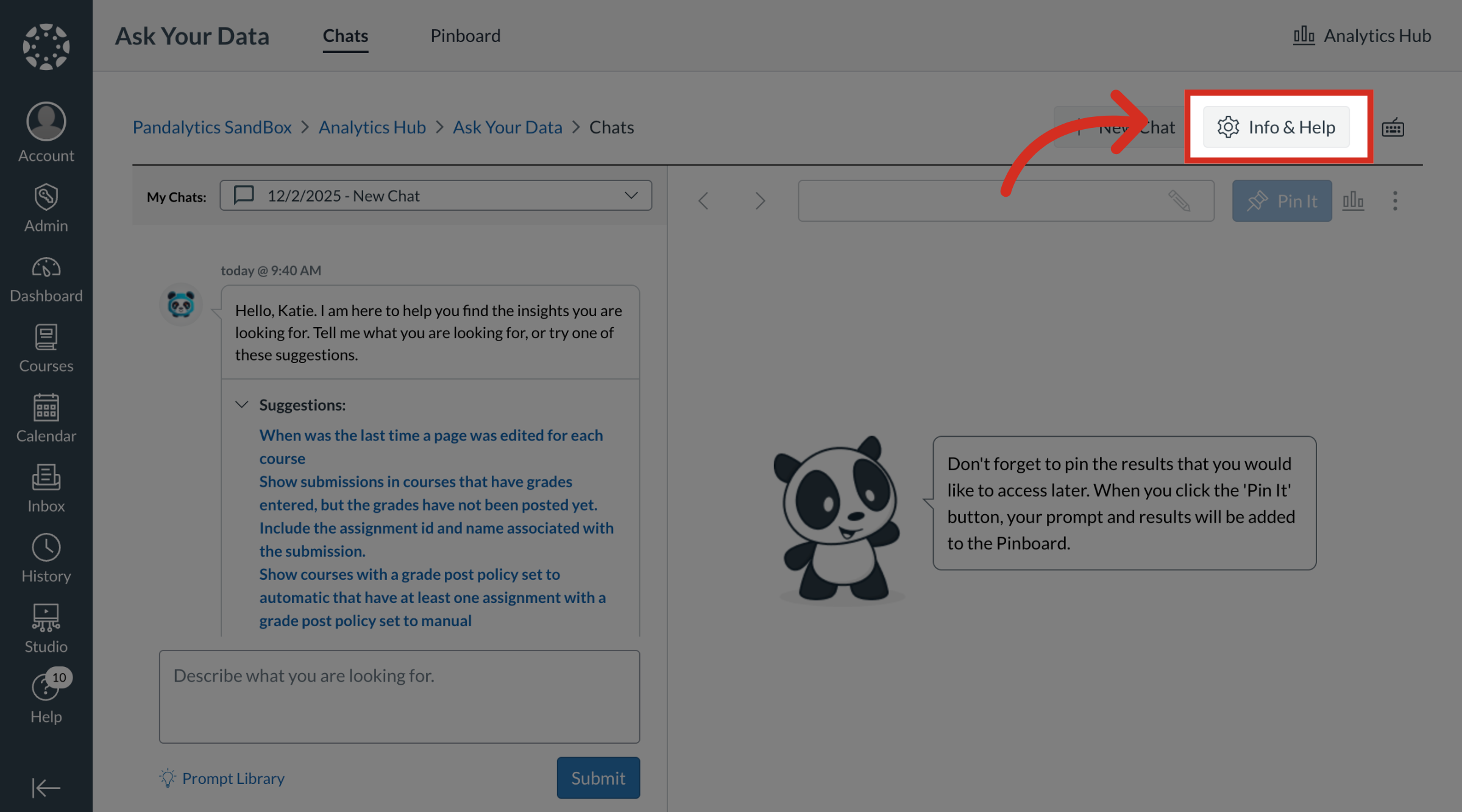
1. Open Info and Help
In the Ask Your Data Chats dashboard, click the Info and Help button.
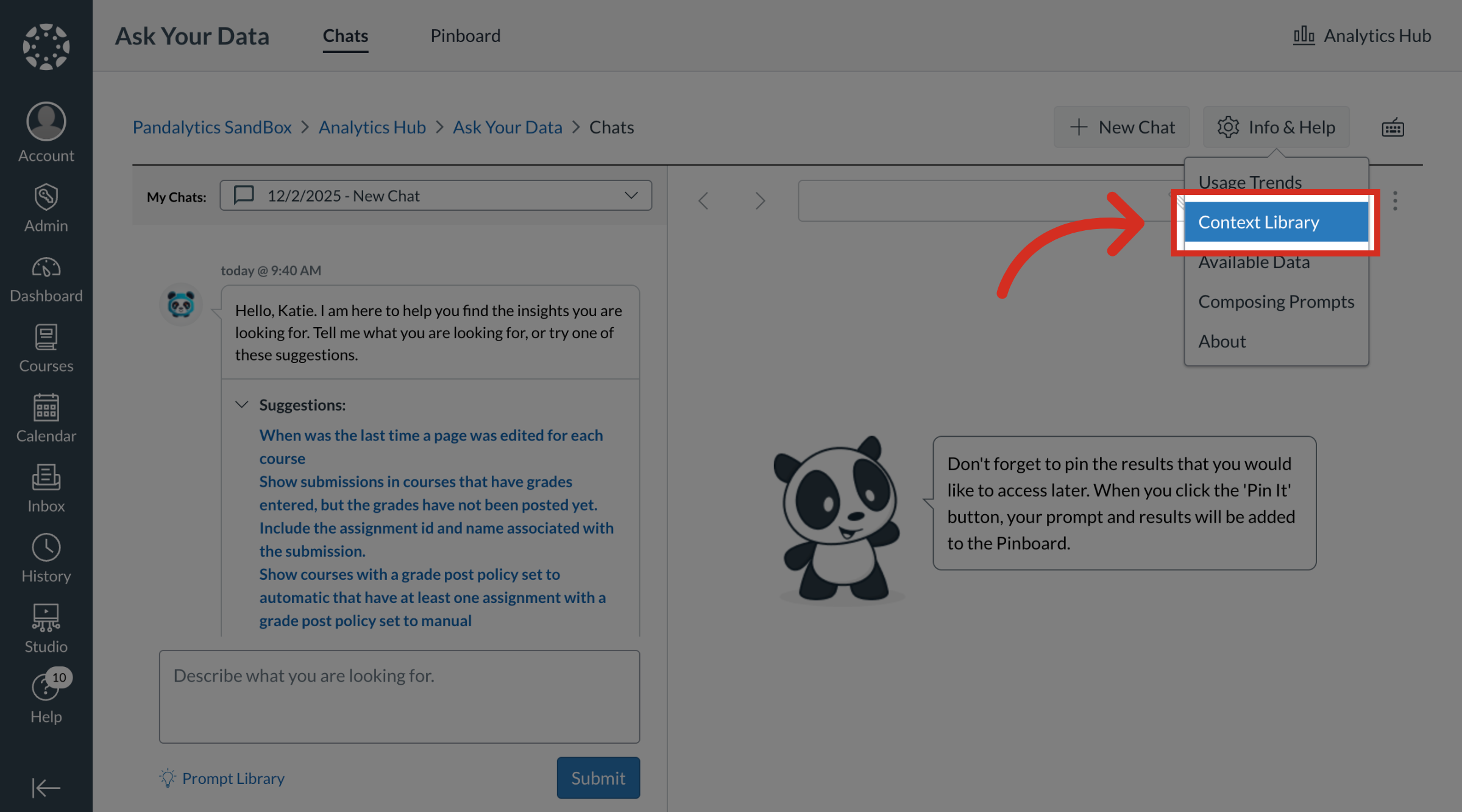
2. Open Context Library
Click the Content Library link.
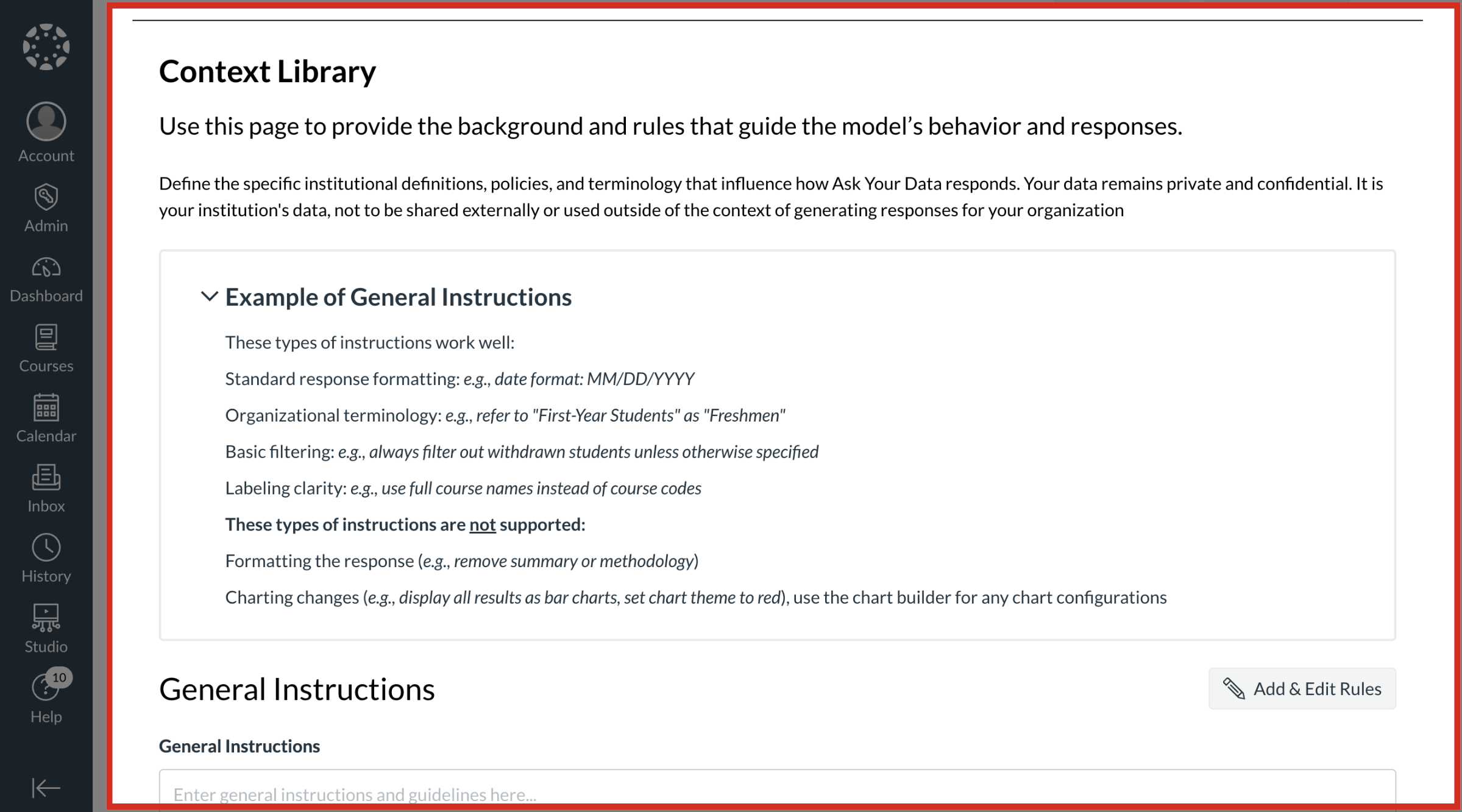
3. View and Edit Context Library
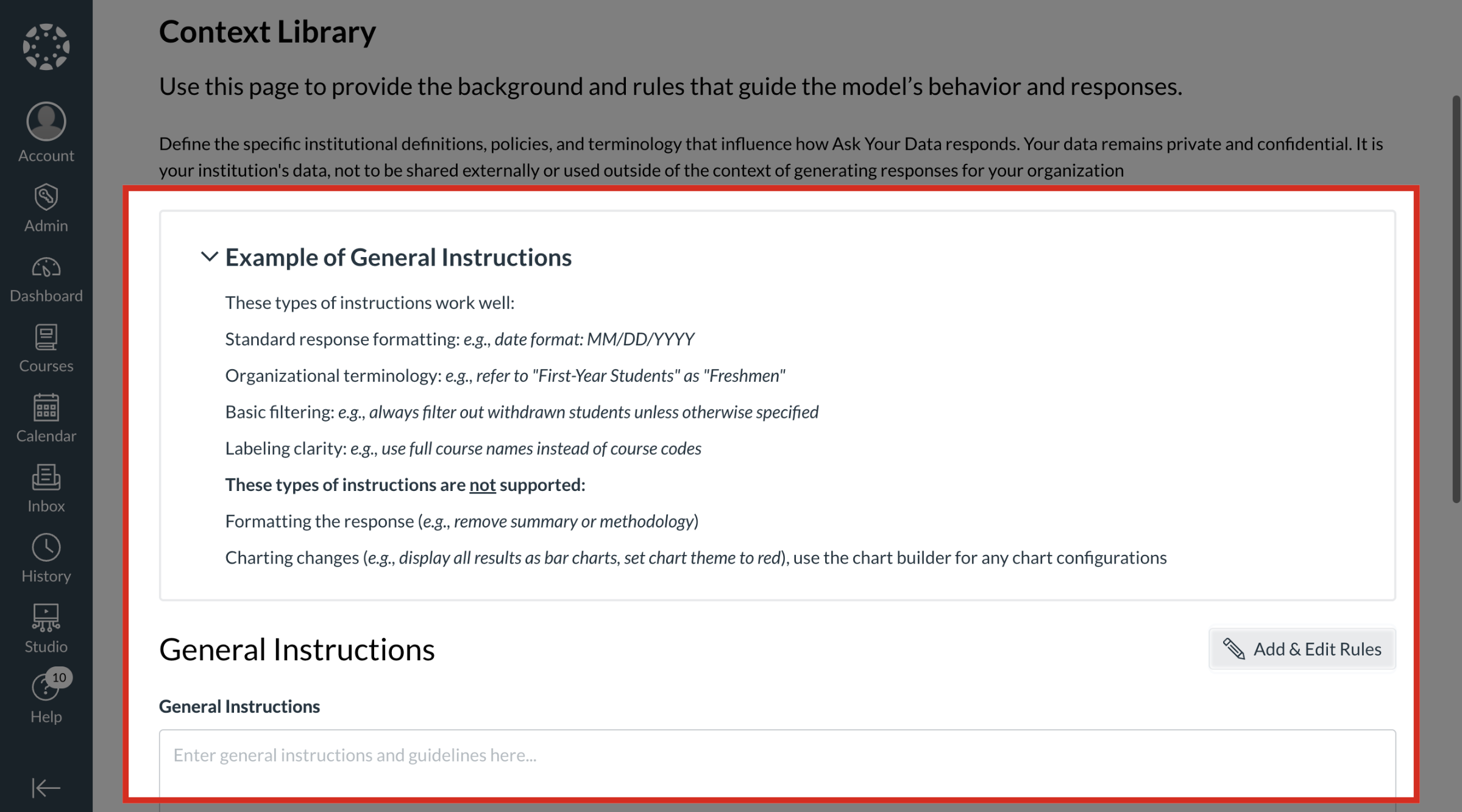
The Context Library allows you to provide the background and rules that guide Ask Your Data's behavior and responses.
Note: Your data remains private and confidential. It is your institution's data, not to be shared externally or used outside of the context of generating responses for your organization.
4. General Instructions
5. Edit Rules in General Instructions
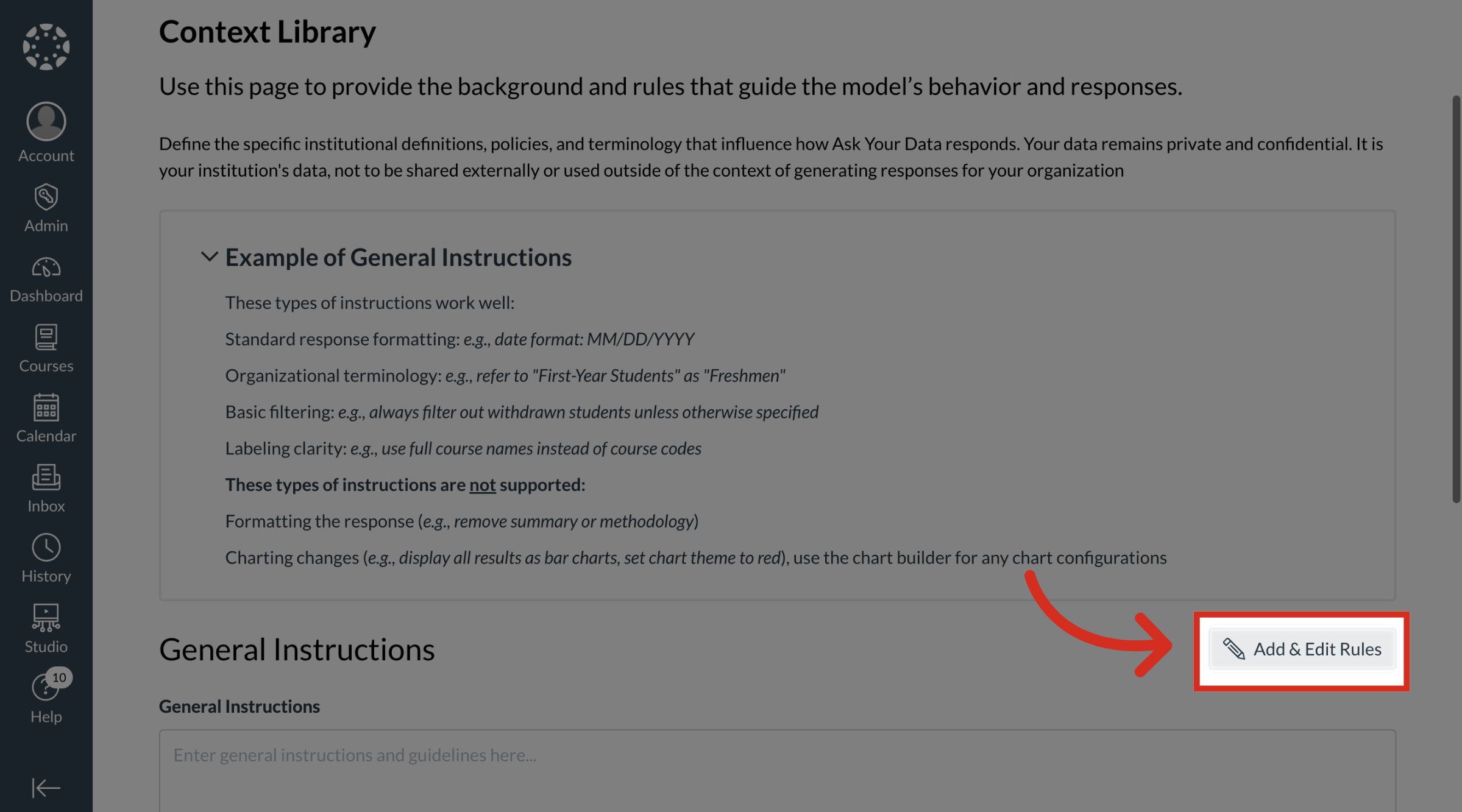
To modify or add new rules that guide the model's responses, click the Add & Edit Rules button.
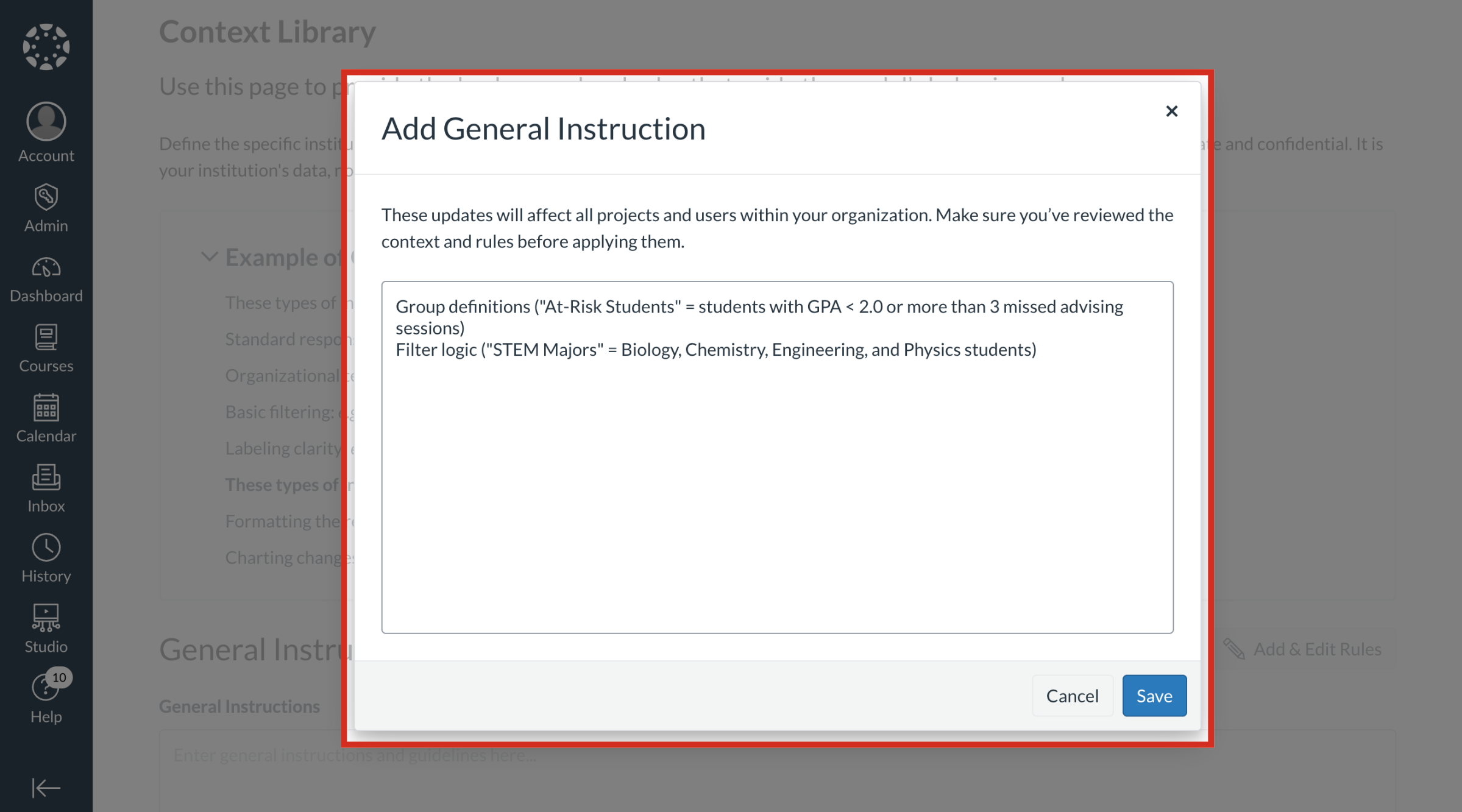
6. Add General Instructions
To modify or add rules, click and edit the text box. These updates will affect all projects and users within your organization. Make sure you’ve reviewed the context and rules before applying them.
Then click the Save button.
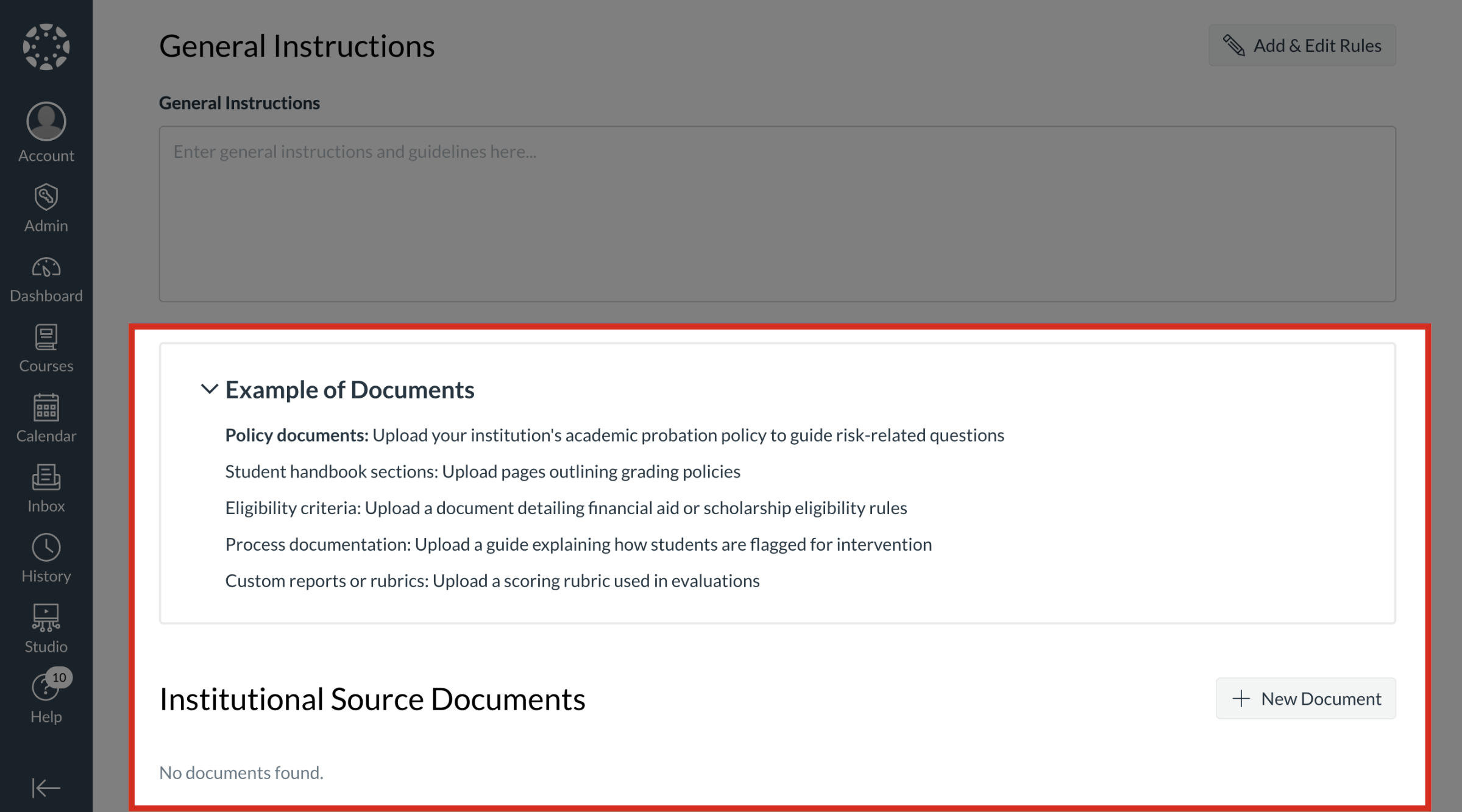
7. Institutional Source Documents
In the Institutional Source Documents section, upload your institution's policy documents, student handbook sections, eligibility criteria process documentation, or custom reports or rubrics to help guide Ask Your Data.
8. Add or Manage Institutional Source Documents
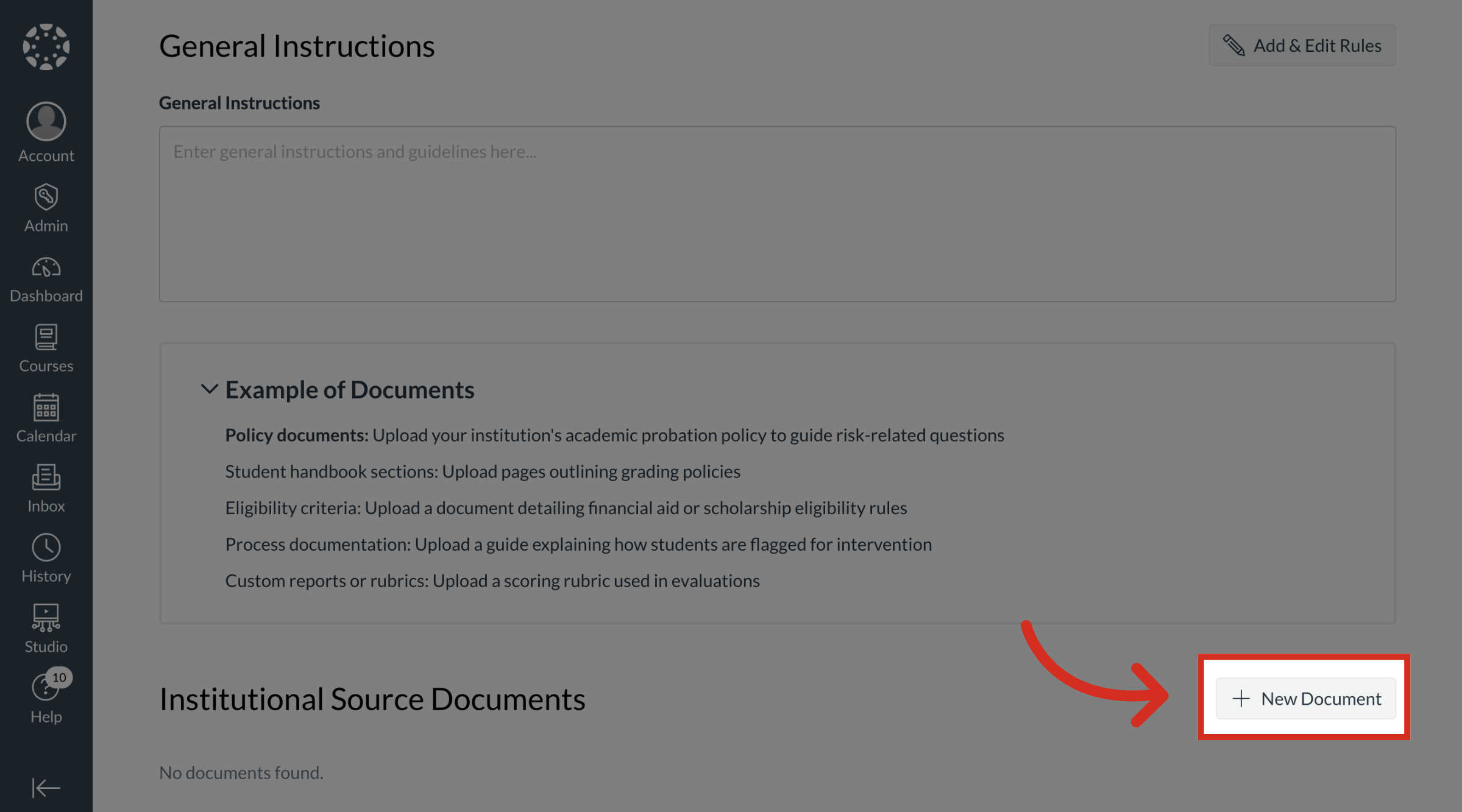
To add or manage documents that provide institutional context, click the New Document button.
9. Upload Institutional Document
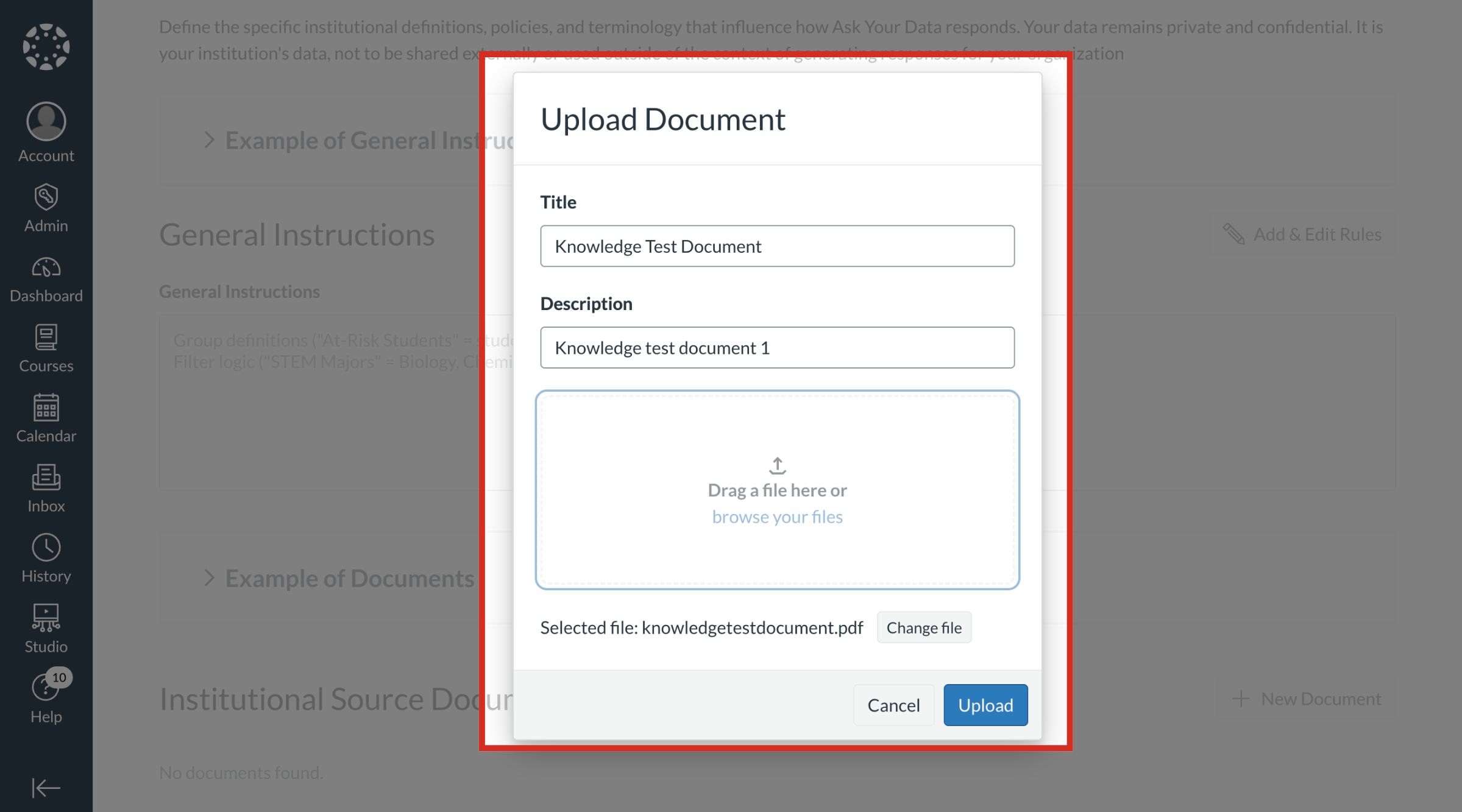
To upload a document, add the title and description.
Then drag a file or browse your files to select the document you want to upload and click the Upload button.
10. View Uploaded Institutional Source Documents
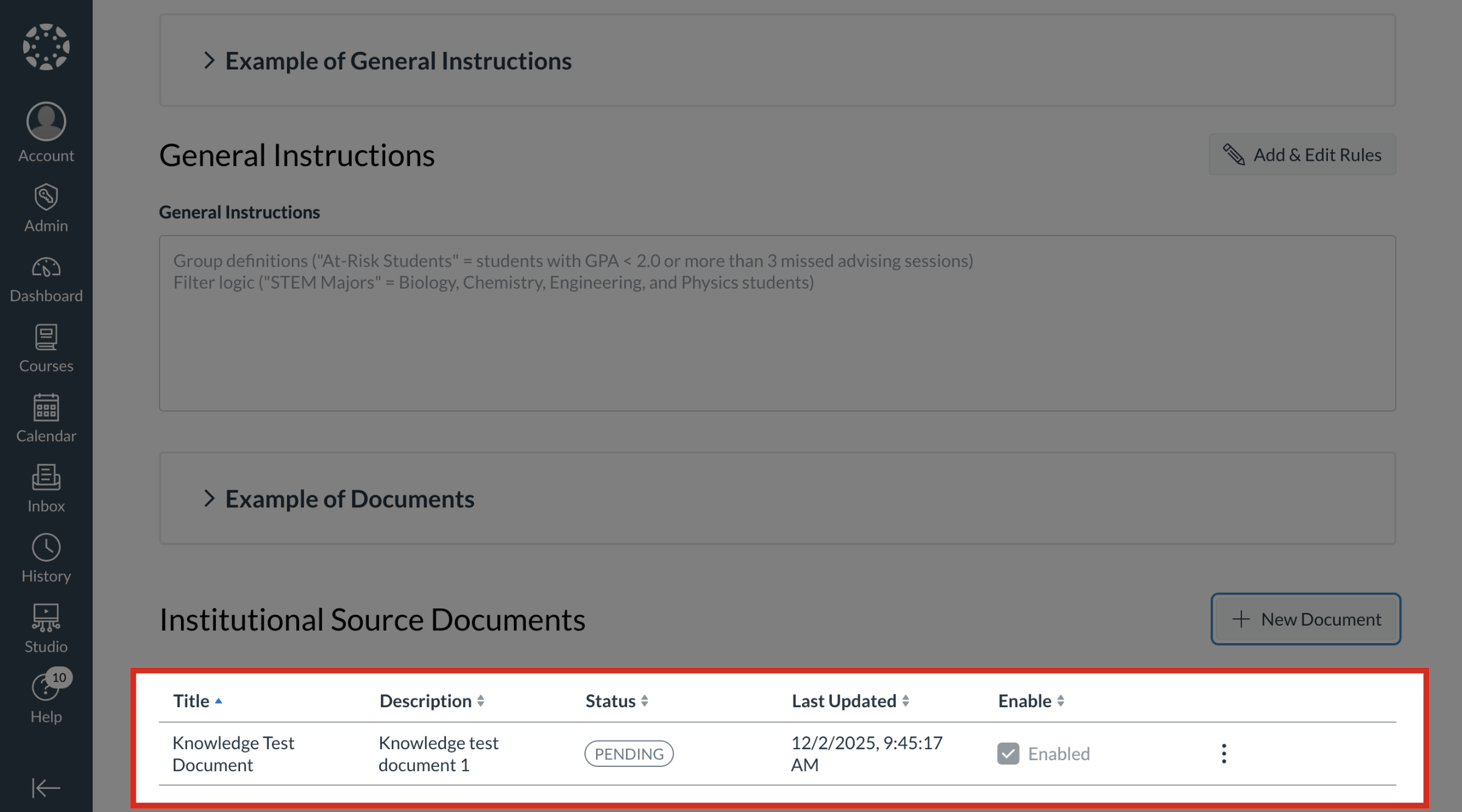
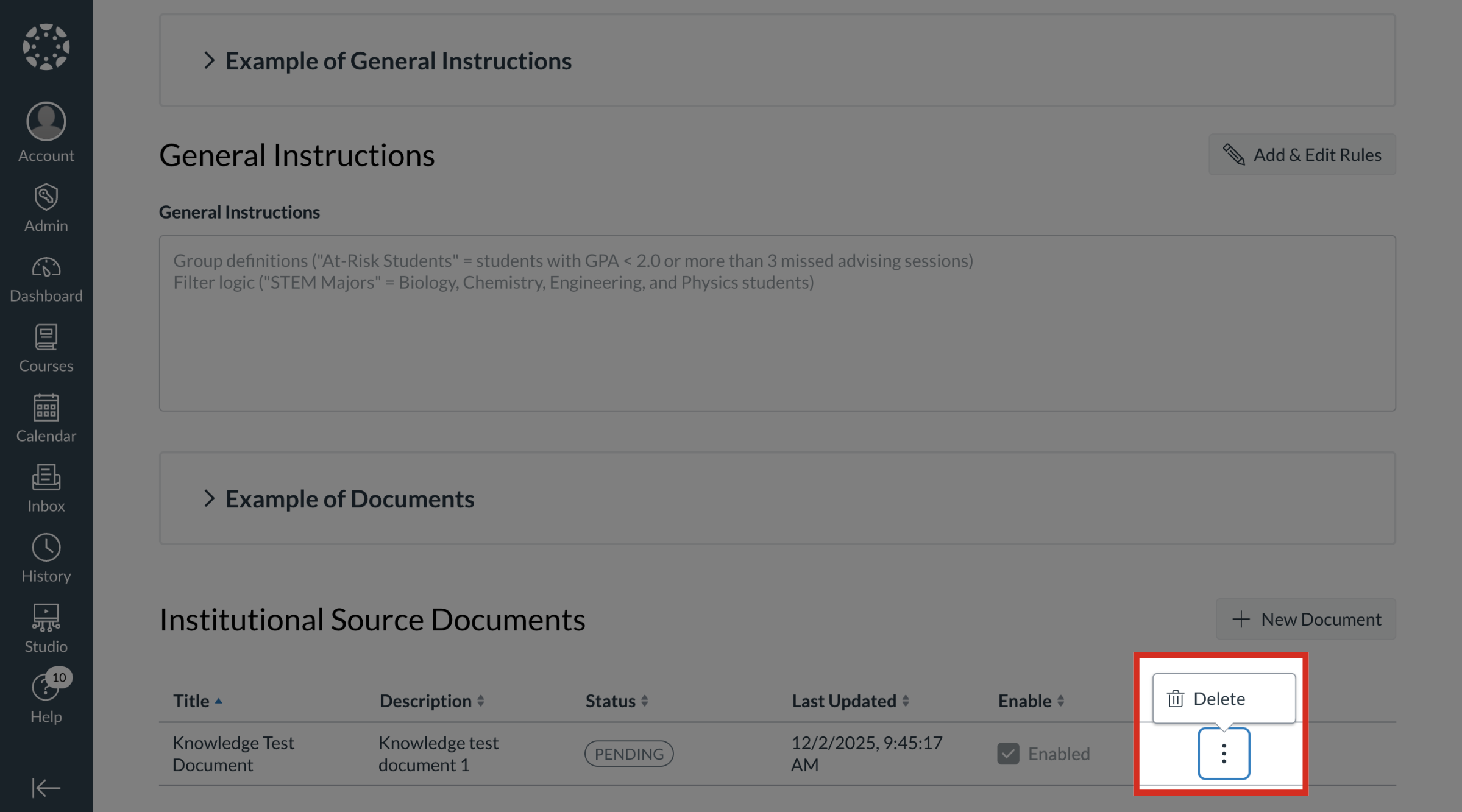
11. Delete Document
To delete an Institutional Source Document, click the Options button. Then click the Delete link.